3. Configuration Overview
The configuration page opens with the Logo Status overview and the Seasonal Campaigns panel, followed by two tabs — Storefront and Documents / Email — that group the five logo panels.
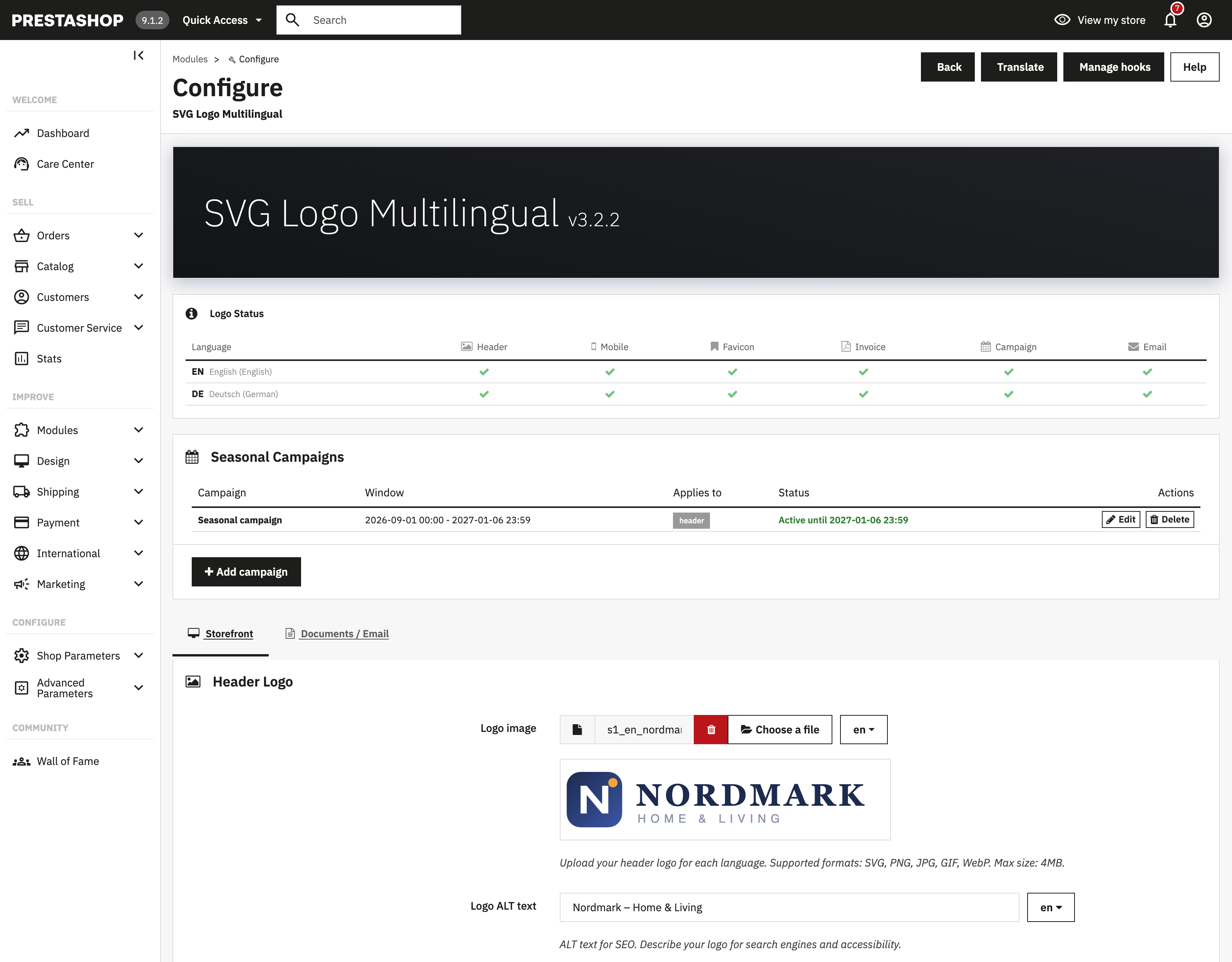
Logo Status shows a live matrix of your languages against every logo type, including a campaign column for languages covered by a campaign file. A green check means that language has its own file for that logo type; a dash means the language falls back to the standard shop logo.

The two tabs keep related panels together — Storefront contains Header Logo, Mobile Logo and Favicon; Documents / Email contains the Invoice and Email logos.

Tip: Every save button on the page submits the whole form, so you can edit several panels and save once.
3.1 Header Logo
The main storefront logo, uploaded per language.
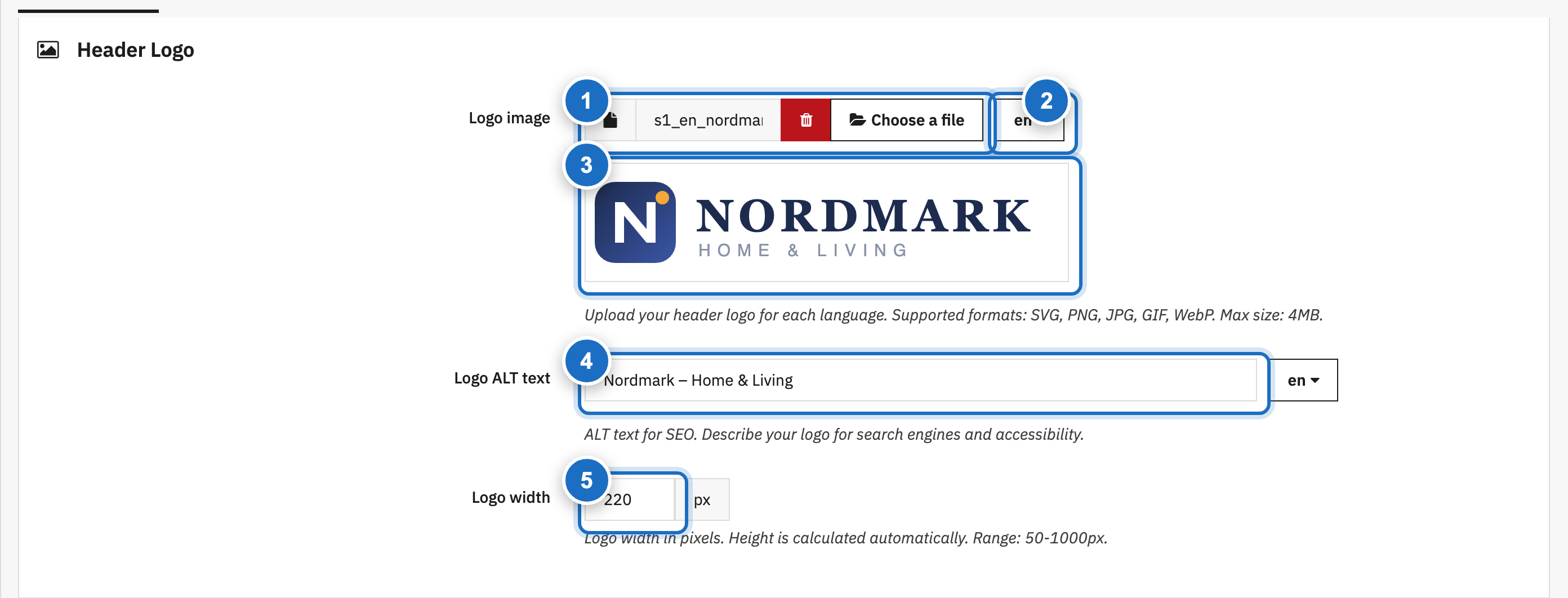
| # | Element | Description |
|---|---|---|
| 1 | Logo image | The uploaded file for the currently selected language. The red trash button removes the assignment for this language (the language then falls back to the standard shop logo). |
| 2 | Language selector | Switches the file field, preview and ALT text between your shop languages. |
| 3 | Live preview | Thumbnail of the currently stored logo for the selected language. A preview also appears immediately after you choose a new file, before saving. |
| 4 | Logo ALT text | Multilingual ALT text, applied server-side to the header logo for SEO and screen readers. |
| 5 | Logo width | Display width in pixels (50–1000). Height is calculated automatically from the image's aspect ratio, including the SVG viewBox. |
Use the language selector to upload a separate file for each language:
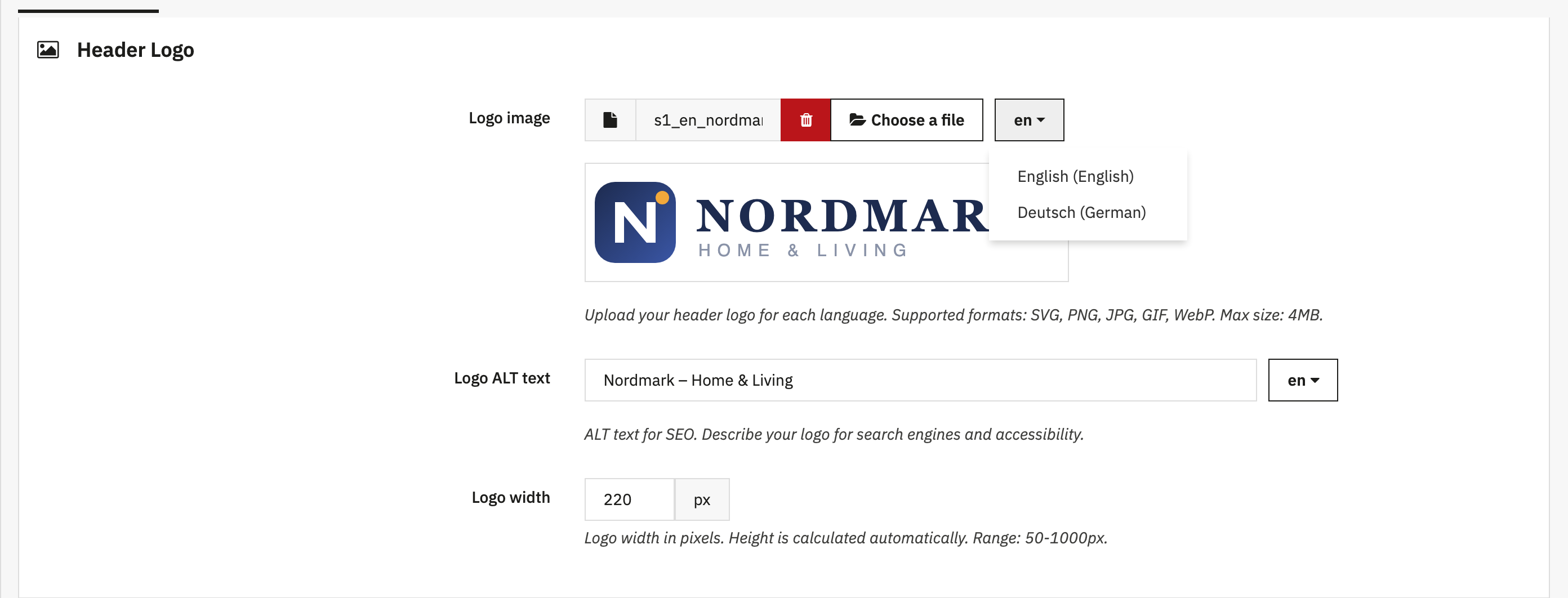
Supported formats: SVG, PNG, JPG, GIF, WebP — maximum 4 MB per file.
Note: A language without its own file simply keeps the standard PrestaShop logo, so you can roll the module out one language at a time.
3.2 Mobile Logo
An optional simplified logo — typically an icon or monogram without text — shown on small screens instead of the full header logo.
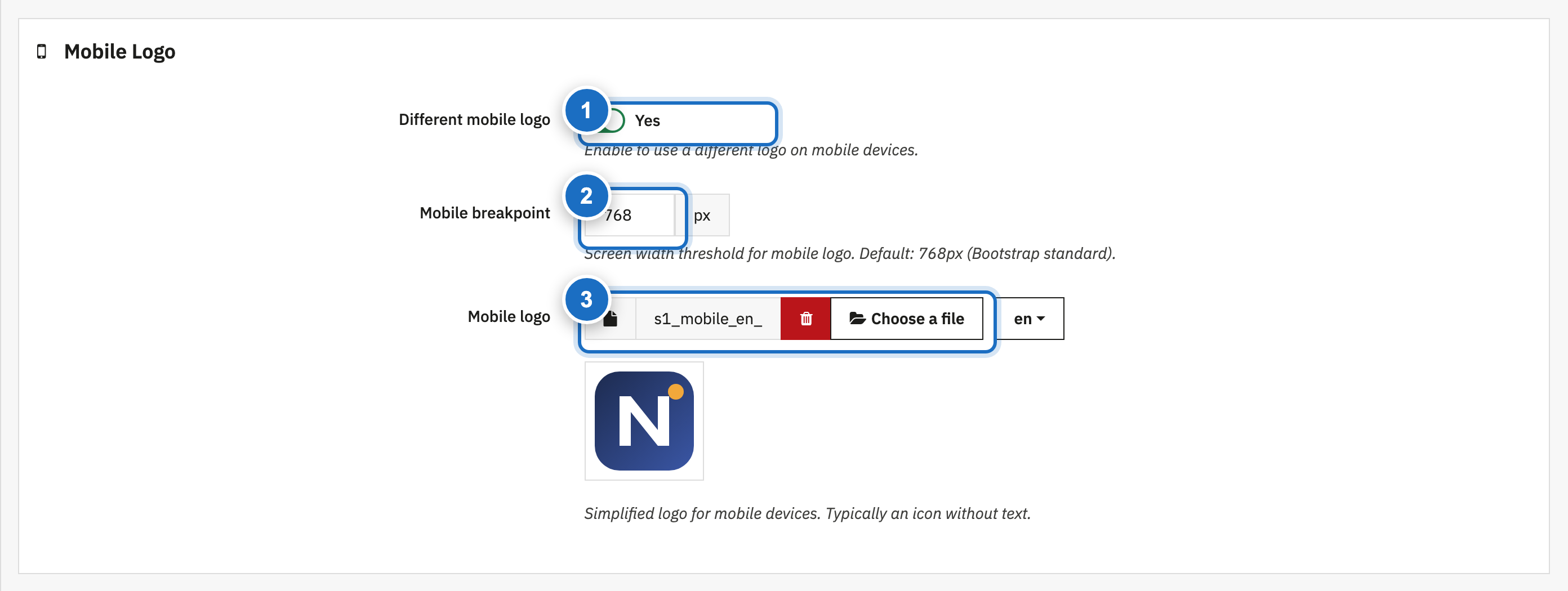
| # | Setting | Description | Default |
|---|---|---|---|
| 1 | Different mobile logo | Enables the mobile logo swap. | Off |
| 2 | Mobile breakpoint | Screen width in pixels below which the mobile logo is shown (320–1920). | 768 |
| 3 | Mobile logo | The per-language mobile file. Same formats as the header logo. | — |
3.3 Favicon
A different favicon per language — useful when each market runs under its own brand accent or when you want visitors to recognize the language version in their browser tabs.
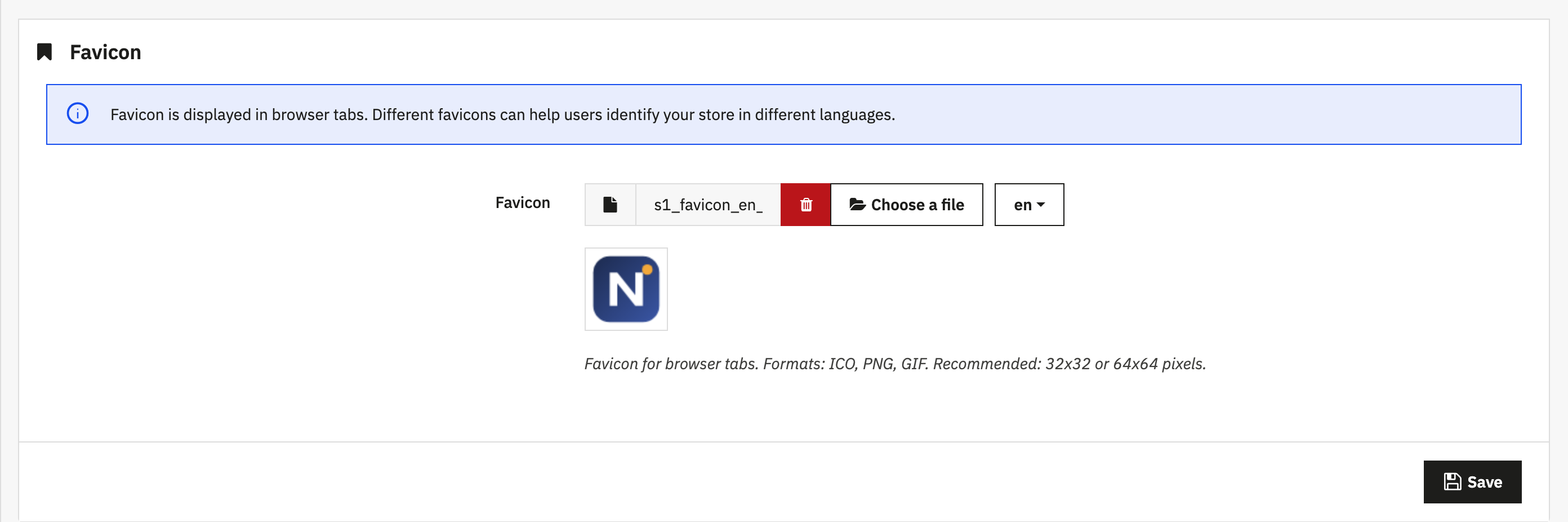
Supported formats: ICO, PNG, GIF. Recommended size: 32×32 or 64×64 pixels.
The module versions the favicon URL by the file's content, so browsers pick up a replaced favicon immediately — no cache tricks needed.
3.4 Invoice & PDF Logo
The logo printed on PDF invoices, delivery slips and credit slips. The module selects the file by the language of the order, not the language of the employee generating the document — a German customer's invoice carries the German logo even when your staff works in English.
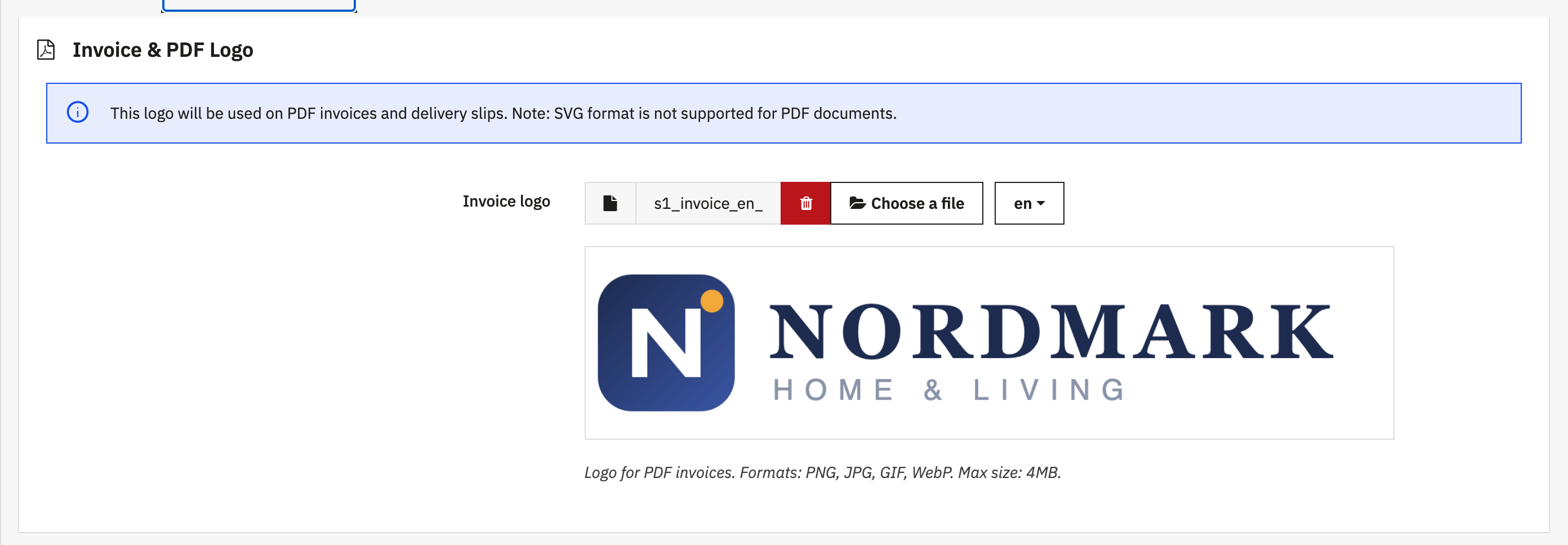
Supported formats: PNG, JPG, GIF — SVG and WebP are not supported by the PDF engine. PNG or JPG are the safest choice for PDF rendering.
Note: Seasonal campaigns change this logo only when the campaign explicitly opts in — see chapter 3.6. By default, documents always use the regular invoice logo.
3.5 Email Logo
The logo embedded in every outgoing email — order confirmations, shipping notifications, password resets. The module selects the file by the language of the email being sent and restores the shop's standard configuration immediately after each send, so nothing is permanently changed.
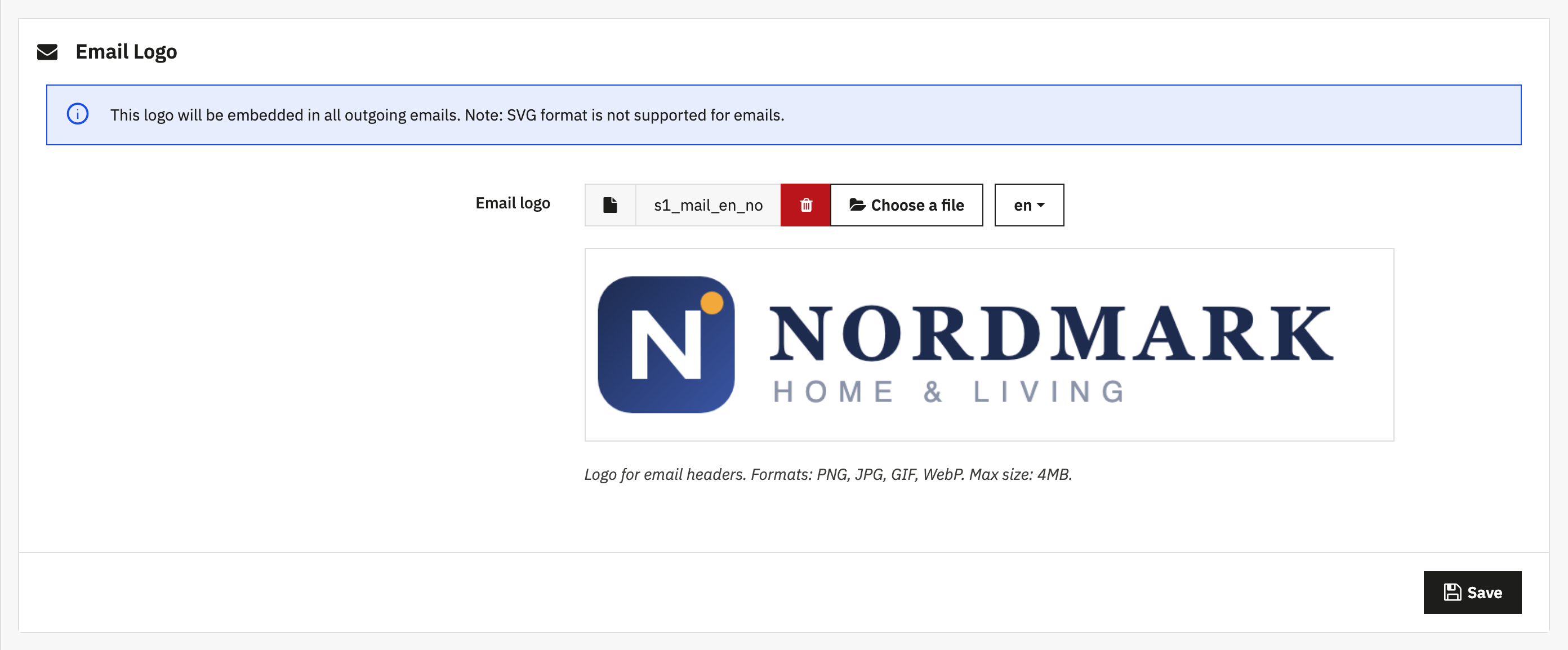
Supported formats: PNG, JPG, GIF, WebP (email clients do not reliably render SVG). PNG is the safest choice.
Note: On PrestaShop 1.7.0 the email integration hook does not exist yet, so this panel is hidden there. Saved email logo settings are kept and become active after a core upgrade.
3.6 Seasonal Campaigns
Plan your whole promotional year as a calendar of campaigns — a Christmas set, a Black Friday variant, a summer sale — each with its own window, its own files and an optional yearly repeat. When a campaign window closes, the regular logos return automatically; you never have to remember to switch back.
The Seasonal Campaigns panel lists every campaign with its window, the outputs it changes and a live status:

| # | Element | Description |
|---|---|---|
| 1 | Window | The campaign's start and end (YYYY-MM-DD HH:MM), interpreted in your shop's timezone — a campaign starts at your midnight, not the server's. An every year badge marks recurring campaigns. |
| 2 | Status | Active until …, Starts …, Ended or Disabled — verify the whole schedule at a glance. |
| 3 | Add campaign | Opens the campaign form. First time here? The empty panel also offers one-click templates: Christmas, Black Friday, Summer sale. |
Creating or editing a campaign is a three-step form:
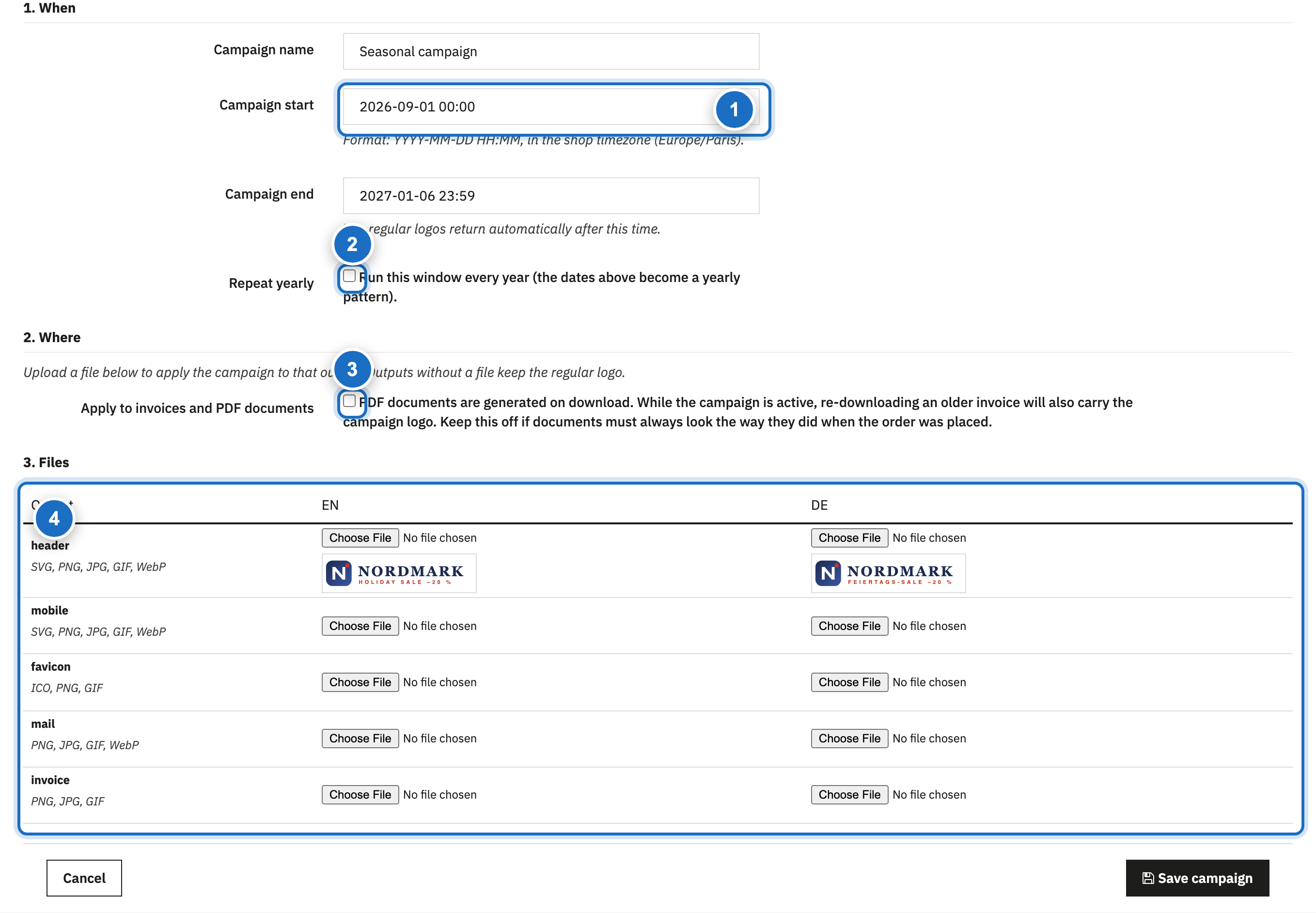
| # | Step | Description |
|---|---|---|
| 1 | When | Name the campaign and set its window. Leave the start empty to begin immediately, or the end empty to keep it running until you edit it (one-time campaigns only). |
| 2 | Repeat yearly | Turn the dates into a yearly pattern — a Black Friday campaign set up once runs every November. Windows that span New Year (25 Nov → 6 Jan) repeat correctly. |
| 3 | Invoices opt-in | By default a campaign never touches PDF invoices and delivery slips. Tick this only if you understand that re-downloading an older invoice during the campaign will also carry the campaign logo. |
| 4 | Files | Upload a per-language file for each output you want the campaign to change: header, mobile, favicon, email — and invoice, if opted in. Outputs without a file keep the regular logo. |
While a campaign is active, its files replace their regular counterparts on the storefront, in the browser tab and in outgoing emails:

Four rules keep campaigns safe:
- Only one campaign can run at a time. Overlapping windows are rejected when you save, and the error names the conflicting campaign — including future collisions of yearly repeats:

- Per-language fallback still applies. A language without a campaign file keeps its regular logo — you can run a campaign in one market only.
- Every file is optional. Upload only a campaign header logo and the mobile logo, favicon, emails and documents simply keep their regular files.
- Invoices are protected by default. PDF documents follow a campaign only when that campaign explicitly opts in; otherwise they always use the regular invoice logo, so documents look the same when they are downloaded again later.
Deleting a campaign never deletes its uploaded files, so you can rebuild a schedule without re-uploading artwork.
Upgrading from 3.1? Your existing seasonal configuration is converted automatically into a campaign named Seasonal campaign, with the same window, files and enabled state — and invoices stay untouched, exactly as before.