14. Order for customers
Sales staff can prepare an order in a customer's name from the grid: the customer's prices, tax and shipping, the customer's addresses, and the order recorded as theirs. The staff member stays signed in as themselves; the customer's account and both carts are not touched.
Switch it on
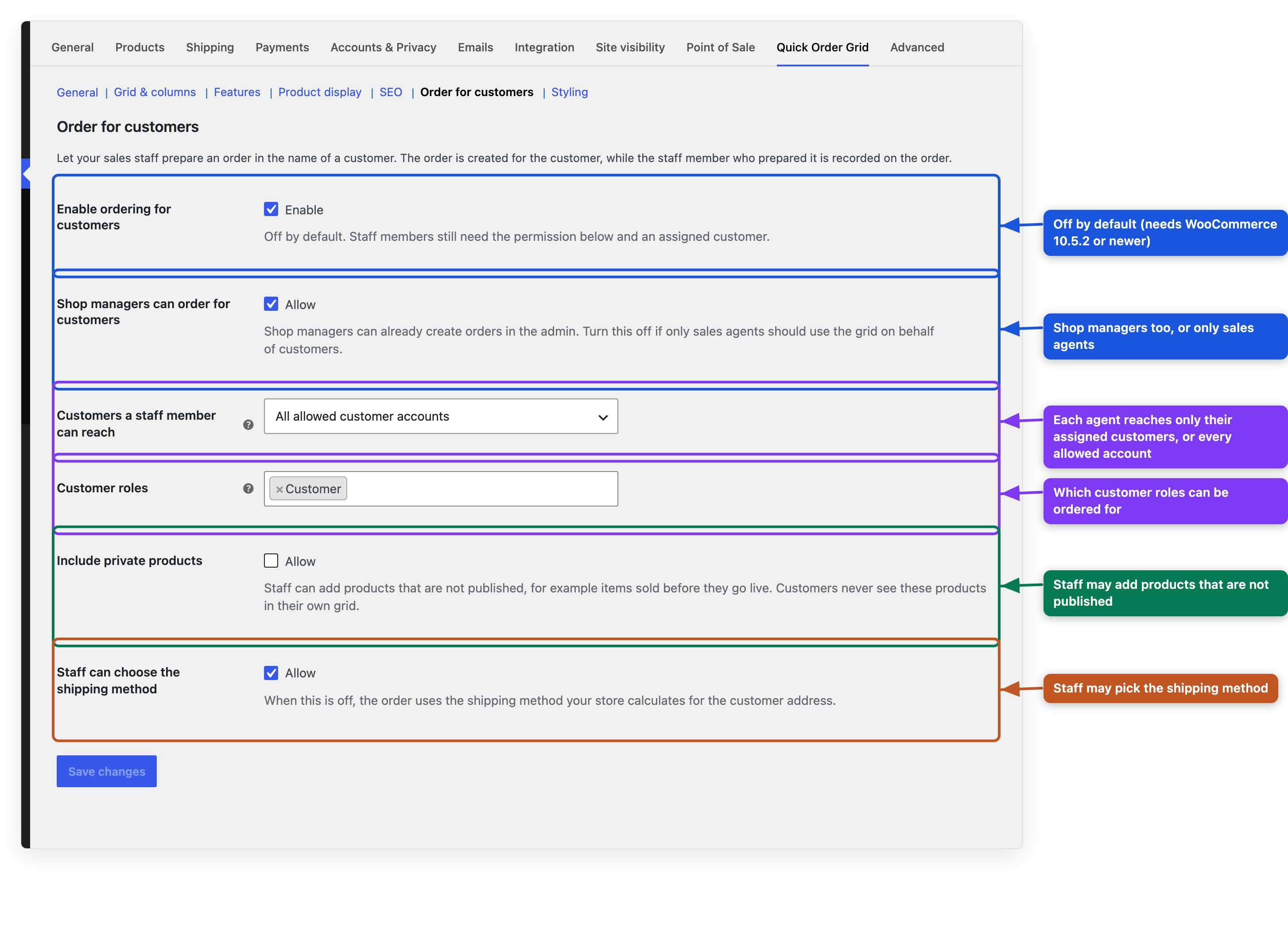
- Go to WooCommerce > Settings > Quick Order Grid > Order for customers (WooCommerce 10.5.2 or newer).
- Tick Enable ordering for customers.
- Choose who may use it and for whom:
| Setting | What it does |
|---|---|
| Enable ordering for customers | Off by default. |
| Shop managers can order for customers | Shop managers may use it too; switch off if only sales agents should. Administrators always may. |
| Customers a staff member can reach | Only assigned customers (each agent sees their own customers) or All allowed customer accounts. |
| Customer roles | Only accounts with one of these roles can be ordered for. Administrators, shop managers and sales agents never can. |
| Include private products | Staff may add products that are not published, for example stock sold before it goes live. Customers never see these products in their own grid. |
| Staff can choose the shipping method | When off, the order uses the shipping your store calculates for the customer's address. |
Sales agents and their customers
Give each sales person a user account with the Sales agent role (Users > Add New User). The role can order for customers from the grid and nothing more in the admin.
With Only assigned customers, open each customer's profile (Users > edit) and choose the agent under Responsible staff member. With All allowed customer accounts no assignment is needed.

Ordering for a customer
-
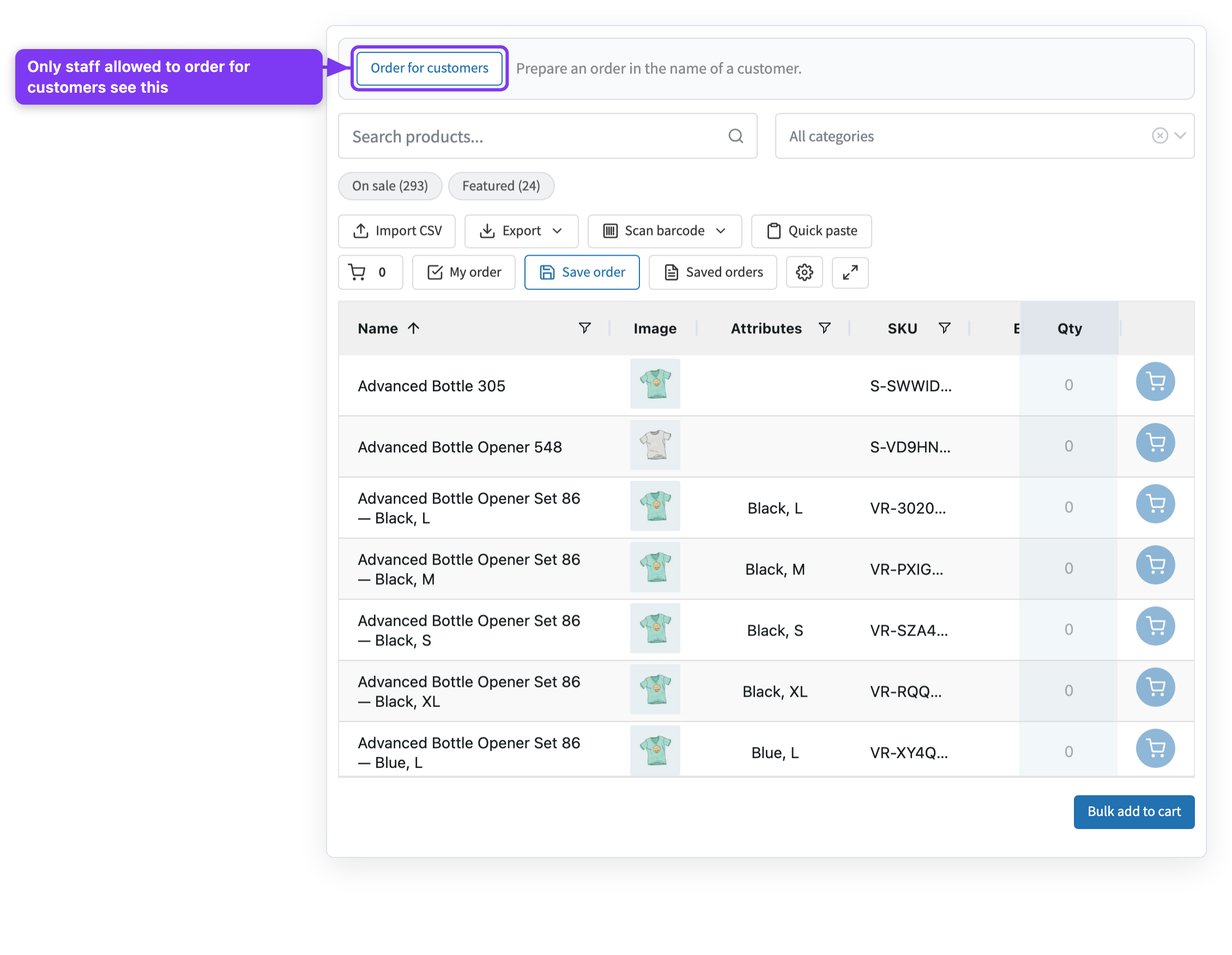
On the grid page, staff see Order for customers. Click it.
-
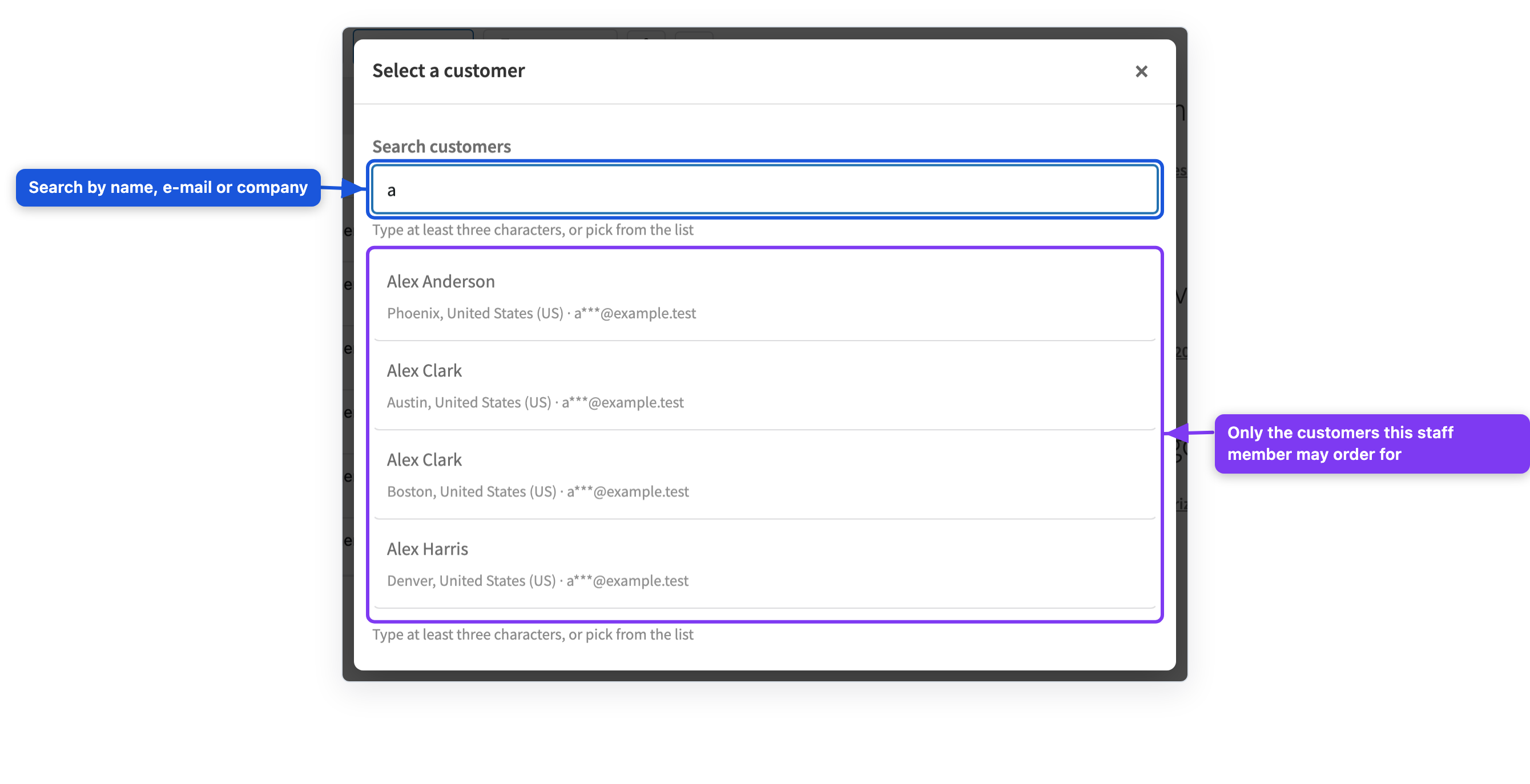
Search for the customer by name, e-mail or company and choose them.
-
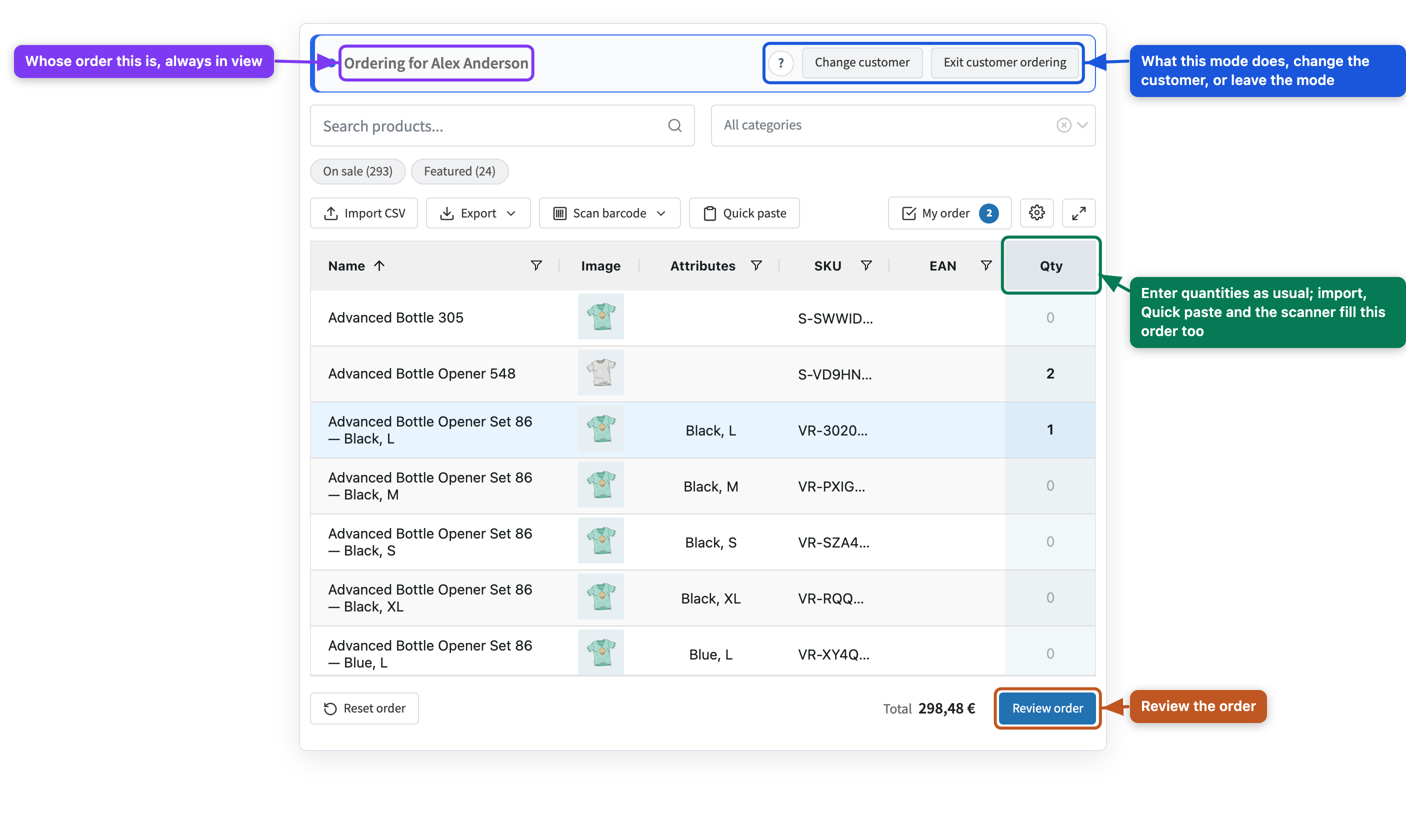
The bar shows Ordering for … all the time. Enter quantities as usual; CSV import, Quick paste and the scanner fill this order too. Change customer and Exit customer ordering are in the bar.
-
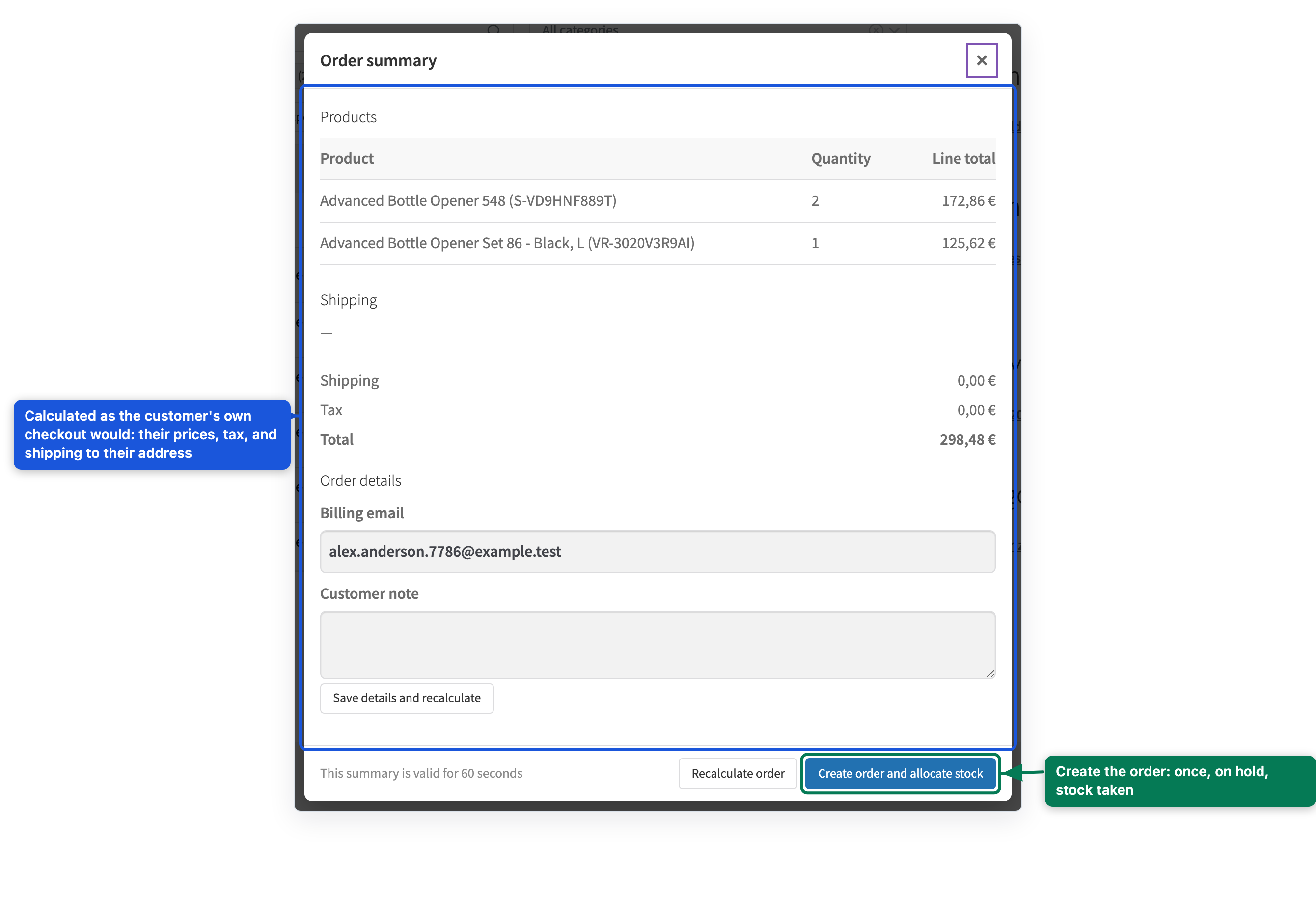
Click Review order. The summary is calculated as the customer's own checkout would be: their prices, tax and shipping to their address. Correct the billing details or add a customer note if needed.
-
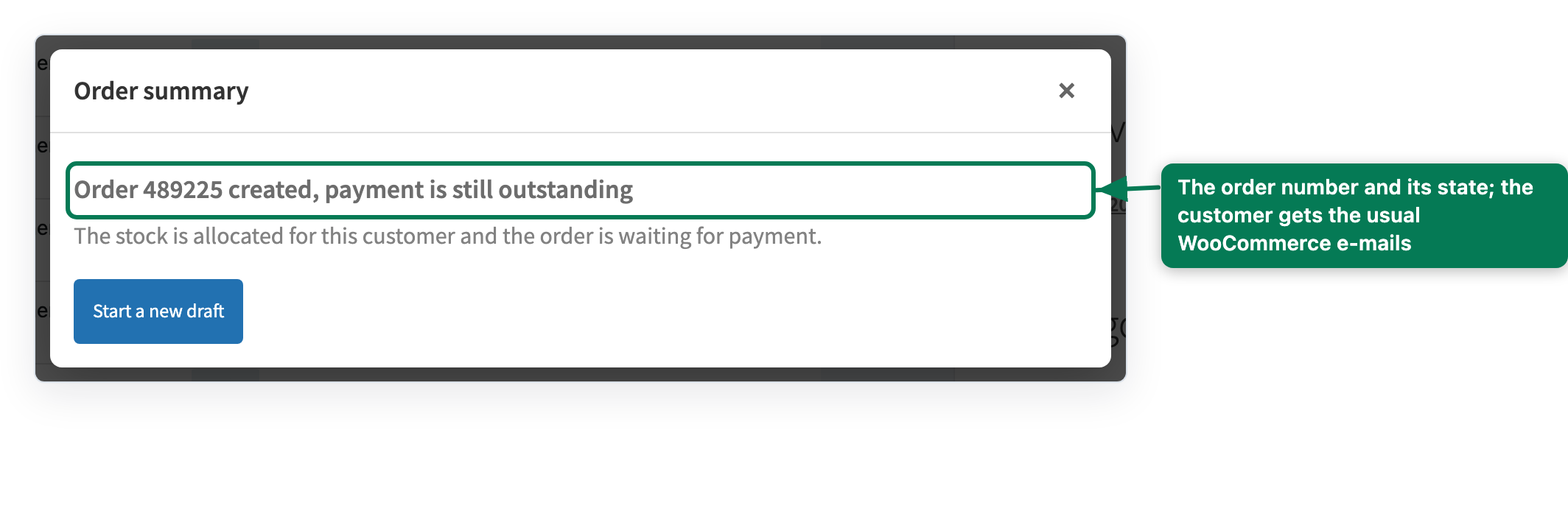
Click Create order and allocate stock. The order is created once, On hold, with the stock taken. The customer receives the usual WooCommerce e-mails and pays the way your store allows.
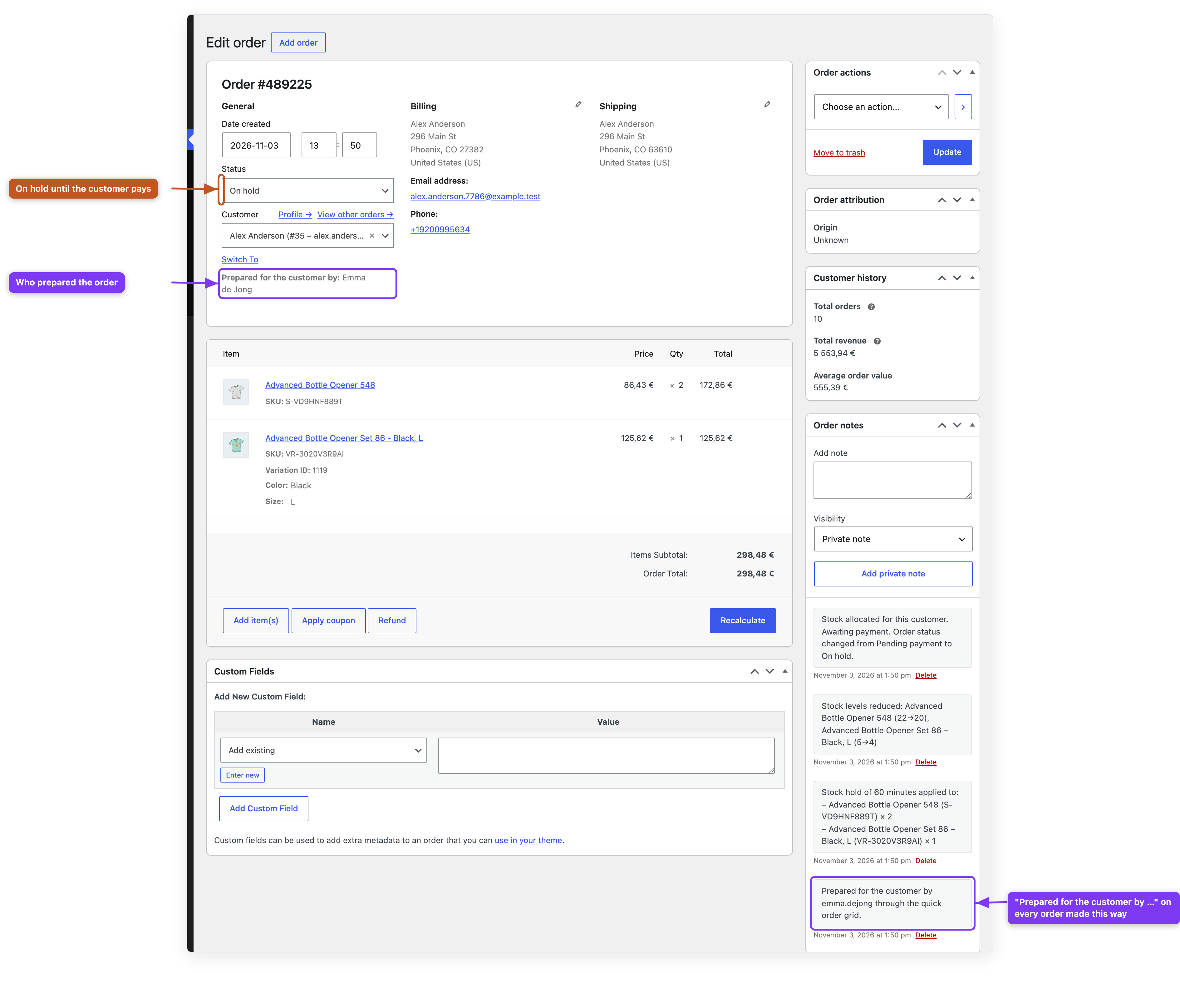
In the admin, the order shows who prepared it, and gets the note "Prepared for the customer by … through the quick order grid".
Plugins that take part in the cart calculation
Before an order is confirmed, the plugin checks which other code changes the cart calculation, so that staff never see prices that differ from the customer's own checkout. When it finds a plugin nobody has checked yet, the settings section lists it under Review before staff can order for customers, and staff are told an administrator needs to review it.
Most such plugins (payment and shipping label plugins, for example) do not change prices. If you trust it, click Allow and check every order. Every order prepared for a customer is then also calculated without that plugin; if the prices, tax or shipping come out different, the staff member sees a warning before confirming and the order gets a note with both totals. An update of an allowed plugin does not bring the question back. You can withdraw the permission on the same screen.

Order recovery
If a confirmation is interrupted (a lost connection, a server timeout) and it cannot be proved whether the order was created, it is not repeated, because repeating it could take the stock twice. It is listed under WooCommerce > Order recovery, with what is known and what you can do.
