4. Setup and configuration
Getting started
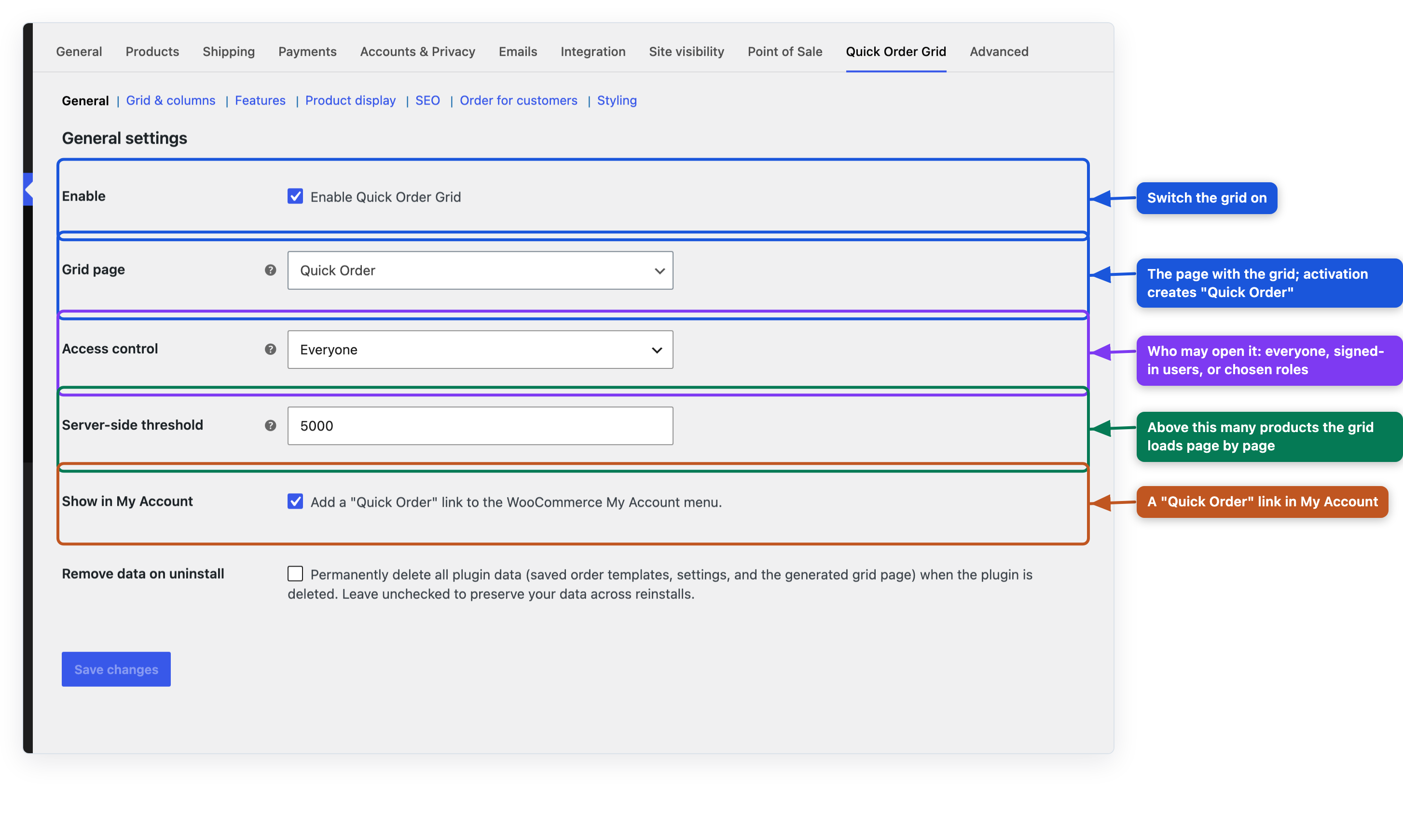
- Go to WooCommerce > Settings > Quick Order Grid.
- Check that Enable is ticked and that Grid page shows the page you want (the Quick Order page made on activation).
- Choose who may use the grid with Access control. Wholesale stores usually choose Logged-in users only or Specific user roles.
- Open the page on the front end, type a quantity and add it to the cart.
To show the grid on another page, add the Quick Order Grid block in the editor, or the shortcode
[b2b_quick_order_grid].
Recommended first setup
- Restrict access to your wholesale customers (Access control).
- Leave Server-side threshold at its default, or lower it if your catalogue is large and the page loads slowly.
- Choose the columns your buyers need in the Column configurator and hide the rest.
- Switch off the tools you do not want under Features.
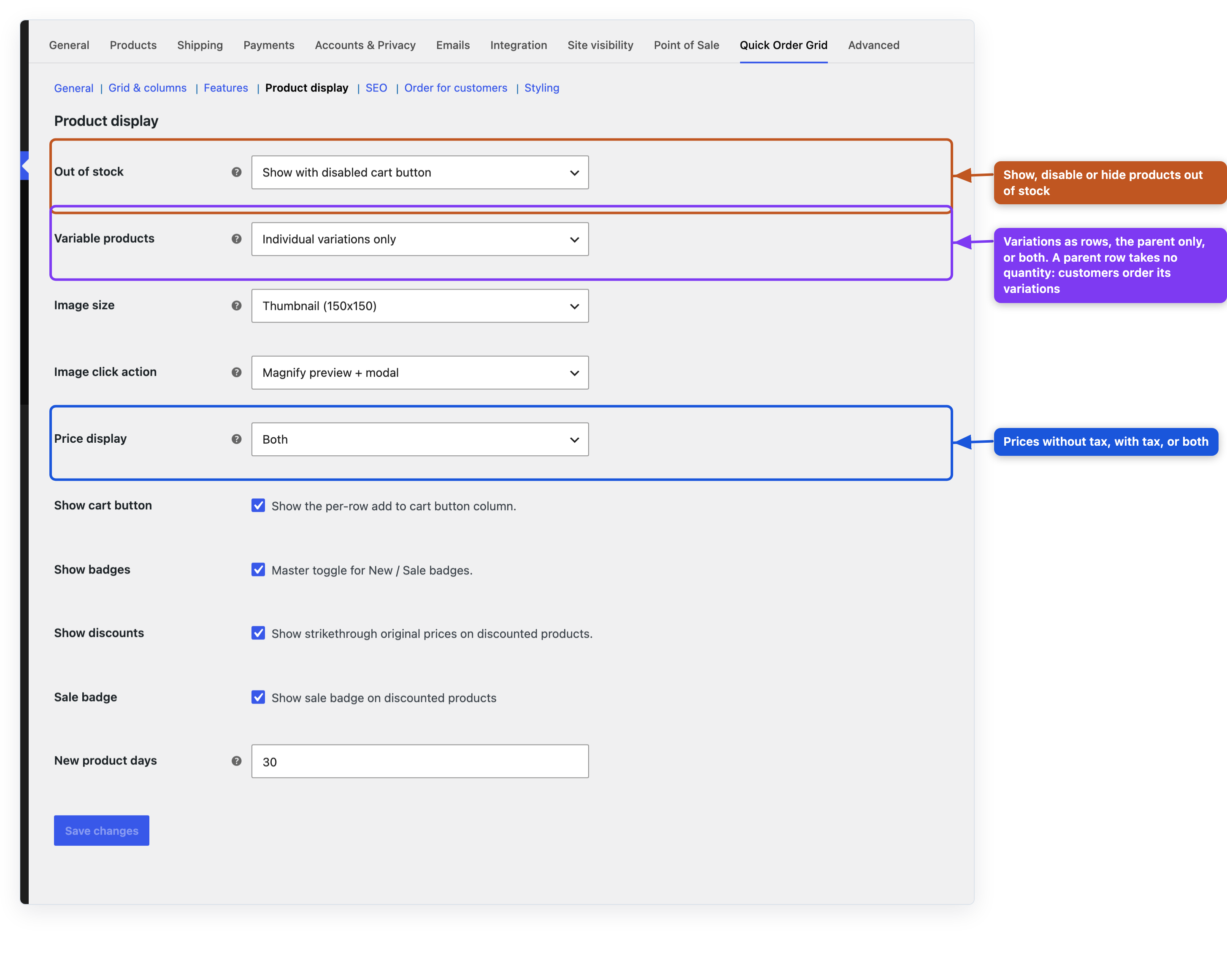
- Decide how variable products and products out of stock appear under Product display.
Settings reference
The settings are in seven sections at the top of the Quick Order Grid tab.
General
| Setting | What it does |
|---|---|
| Enable | Switches the grid on or off. |
| Grid page | The page that shows the grid. |
| Access control | Everyone, Logged-in users only or Specific user roles. |
| Allowed roles | The roles that may use the grid when access is set to specific roles. |
| Server-side threshold | When the catalogue has more products than this, the grid loads them page by page. |
| Show in My Account | Adds a "Quick Order" link to the WooCommerce My Account menu. |
| Remove data on uninstall | When the plugin is deleted, also deletes saved orders, settings and the grid page it created. Off by default. |
Grid & columns
| Setting | What it does |
|---|---|
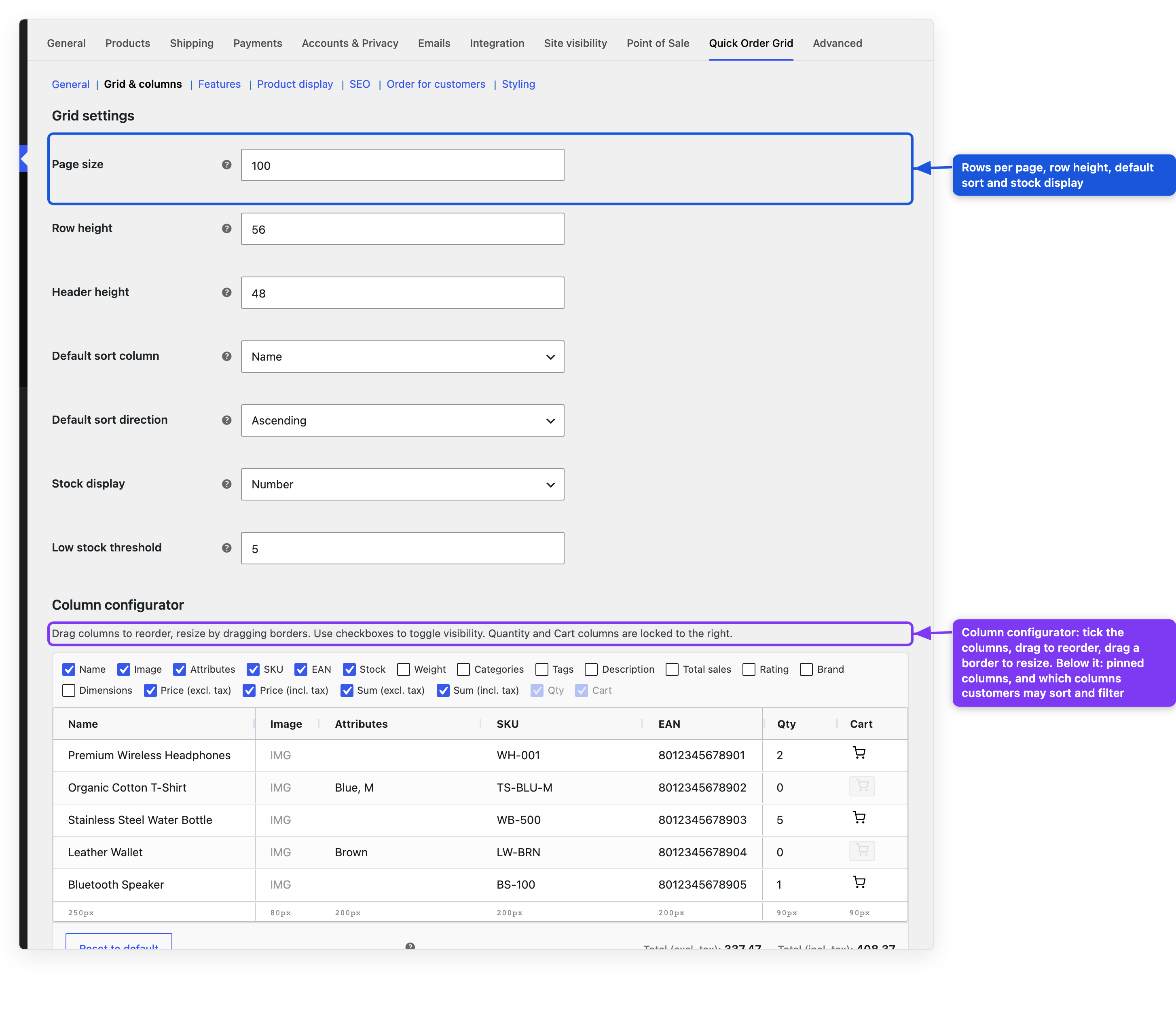
| Page size | Products loaded per page in the page-by-page mode. |
| Row height | Row height in pixels. |
| Header height | Header height in pixels. |
| Default sort column | The column the grid is sorted by when it opens. |
| Default sort direction | Ascending or descending. |
| Stock display | How stock is shown in the grid. |
| Low stock threshold | Below this quantity the stock is marked as low. |
| Column configurator | Tick the columns to show, drag them into order and drag a border to change a width. The preview shows the result. |
| Pinned columns | Columns that stay in place when the grid scrolls sideways. Quantity and Cart stay on the right. |
| Sorting & filtering | Which columns customers may sort and filter by. |
Features
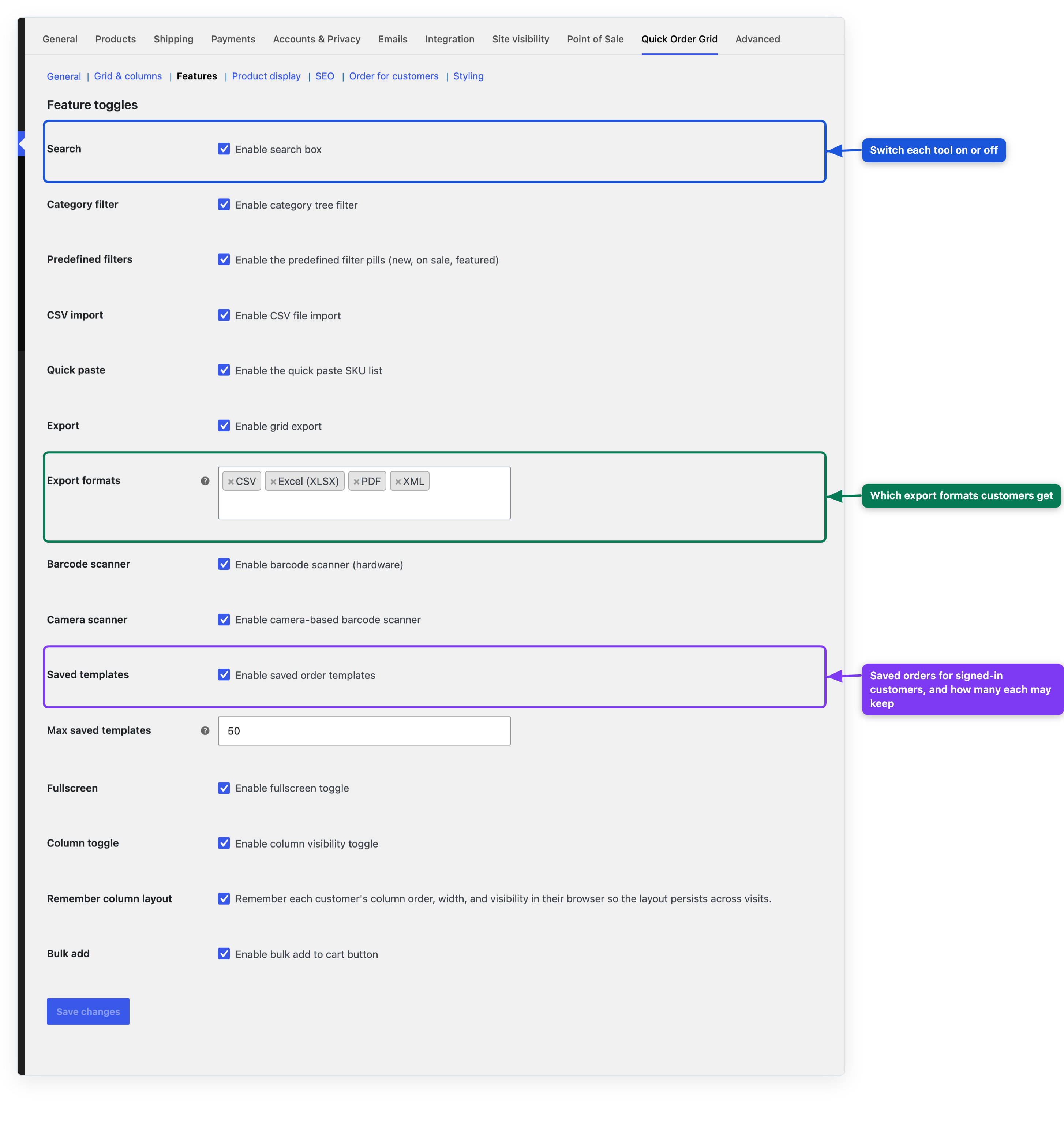
Each tool can be switched on or off: Search, Category filter, Predefined filters (new, on sale, featured), CSV import, Quick paste, Export with its Export formats (CSV, Excel (XLSX), PDF, XML), Barcode scanner (hardware), Camera scanner, Saved templates with Max saved templates, Fullscreen, Column toggle, Remember column layout and Bulk add.
Product display
| Setting | What it does |
|---|---|
| Out of stock | Show normally, Show with disabled cart button or Hide completely. |
| Variable products | Individual variations only, Parent product only or Both parent and variations. A parent row takes no quantity: customers order its variations (with Parent product only, on the product page). |
| Image size | The image size used for thumbnails. Smaller sizes load faster. |
| Image click action | Magnify preview + modal, Open product page or No action. |
| Price display | Excluding tax only, Including tax only or Both. |
| Show cart button | A cart button on every row. |
| Show badges | New and sale badges. |
| Show discounts | The original price struck through on discounted products. |
| New product days | How long a product counts as new. |
SEO
Page title, Meta description and Meta robots of the grid page. For a private B2B catalogue choose
noindex.
Order for customers
See Order for customers below.
Styling
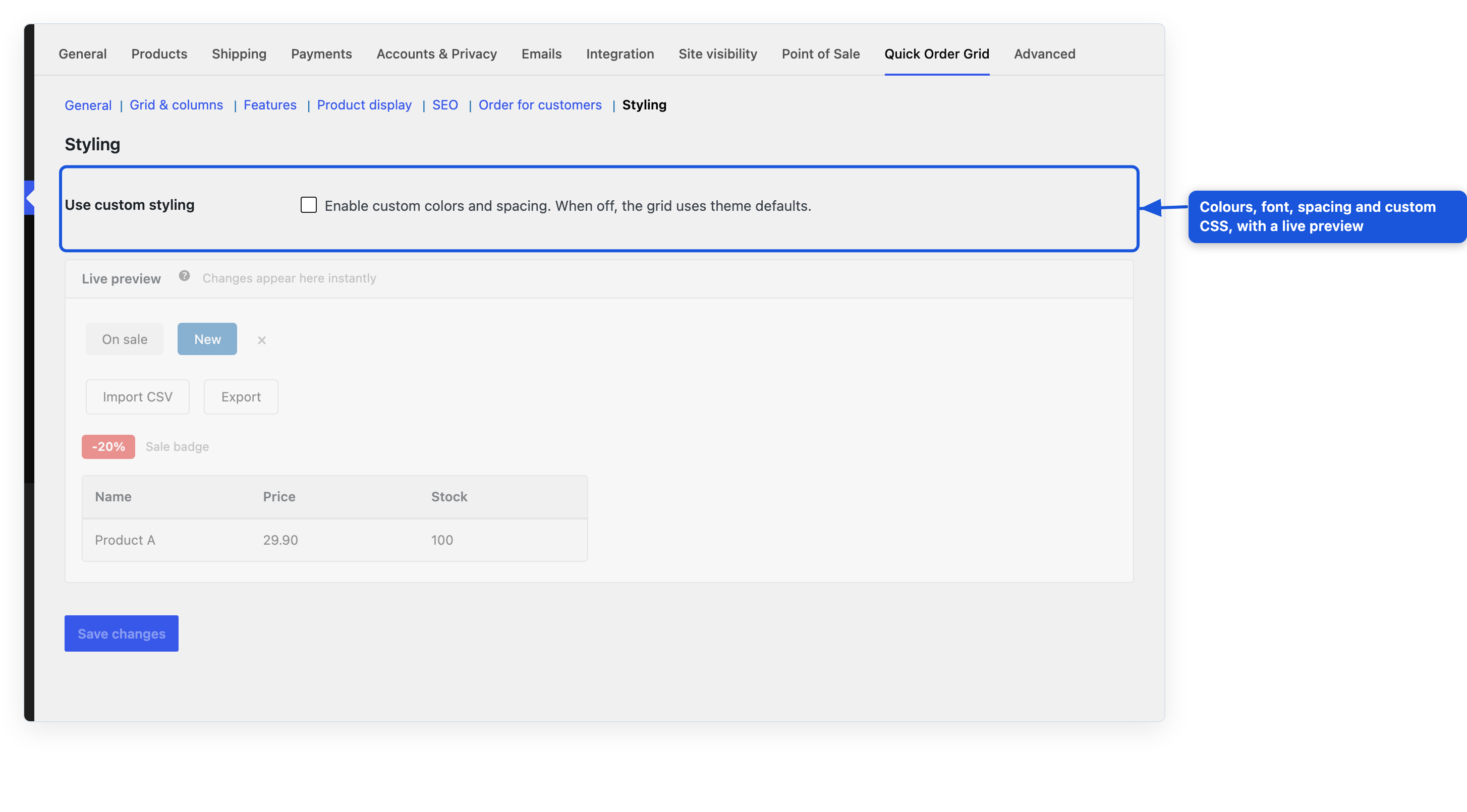
Turn on Use custom styling to set the colours, font, spacing and border radius, or add custom CSS. A preview shows the result before you save.