Admin Configuration
All QuickOrder settings are available in the Adobe Commerce admin panel at:
Stores → Configuration → General → Quick Order
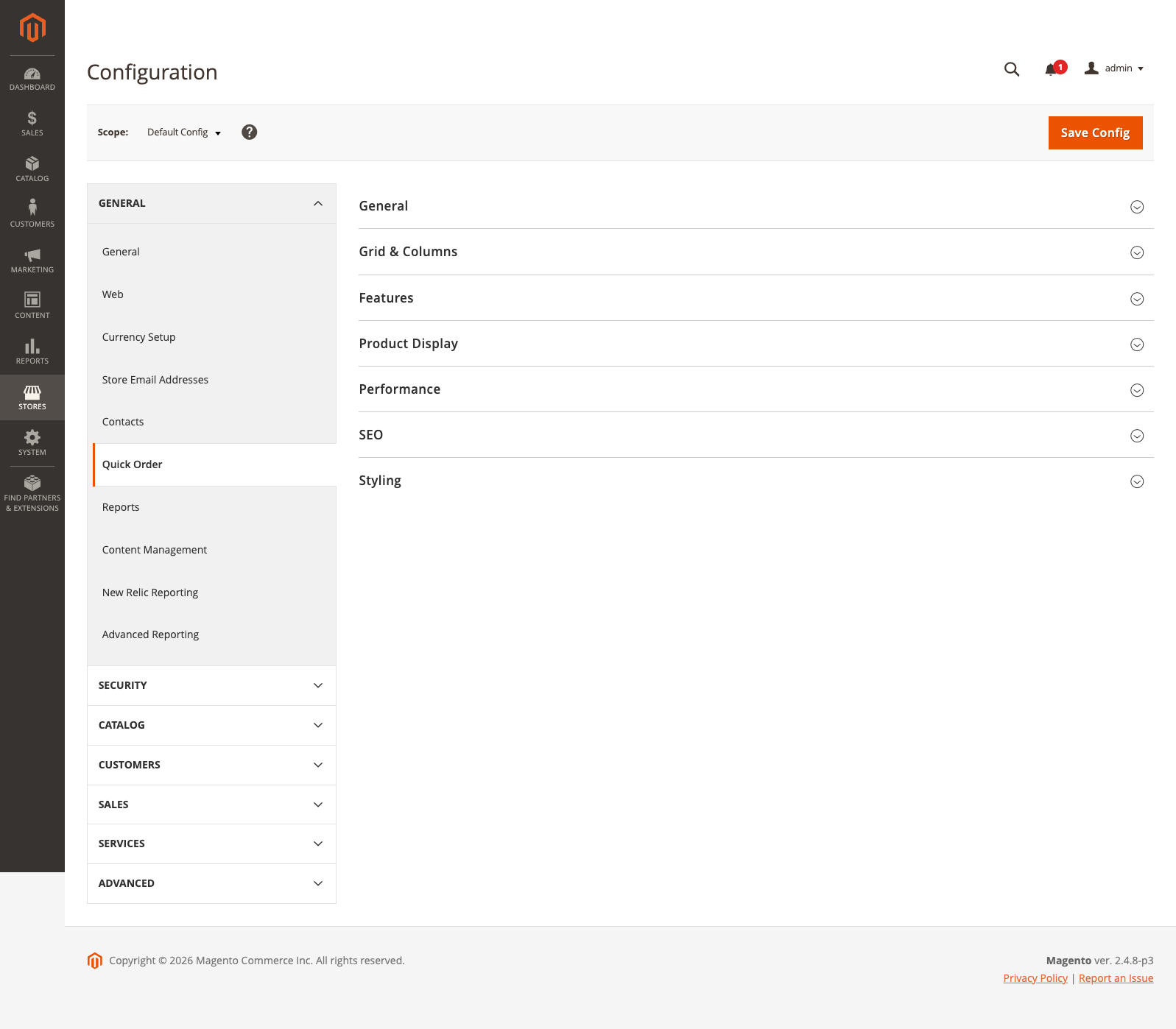
3.1 General Settings
| Setting | Options | Default | Description |
|---|---|---|---|
| Enable Quick Order | Yes / No | Yes | Enables or disables the module globally. When disabled, the Quick Order page returns a 404 error and all navigation links are hidden. |
| Access Restriction | All Visitors / Logged-in Customers Only / Specific Customer Groups | All Visitors | Controls who can access the Quick Order page. |
| Allowed Customer Groups | Multi-select list | — | Only visible when Access Restriction is set to "Specific Customer Groups." Select one or more customer groups that should have access. |
| Enable Saved Orders | Yes / No | Yes | Allows logged-in customers to save and load order templates. |
| Enable Export | Yes / No | Yes | Enables export functionality (CSV, Excel, PDF, XML). |
| Enable CSV Import | Yes / No | Yes | Enables CSV file import and Quick Paste functionality. |
| Enable Barcode Scanner | Yes / No | Yes | Enables camera-based and hardware barcode scanner features. |
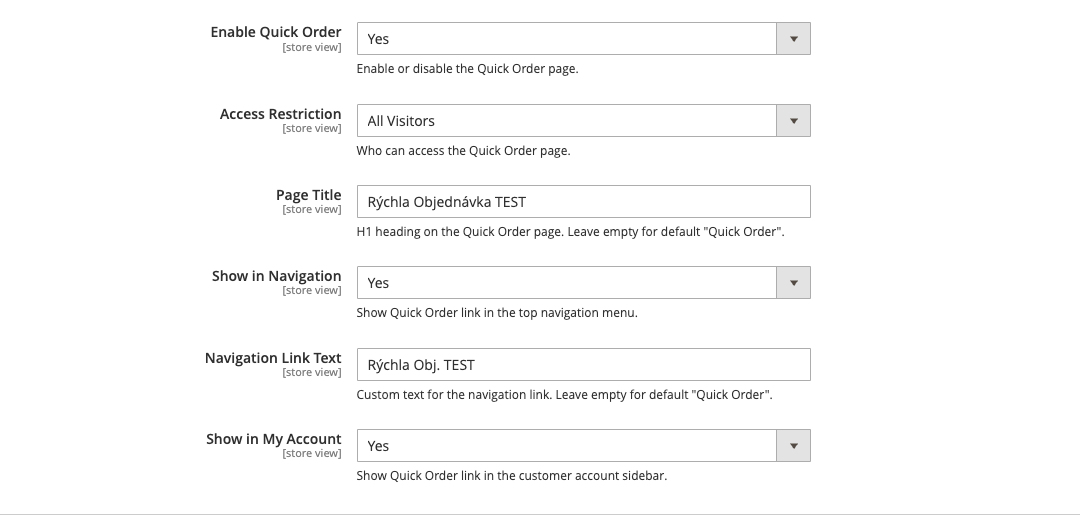
Access Restriction Examples
All Visitors (default): Anyone who visits your store — including guests who are not logged in — can access the Quick Order page.
Logged-in Customers Only: Only customers who are signed in to their account can see and use the Quick Order page. Guest visitors will not see the navigation link, and direct URL access will be denied.
Specific Customer Groups: Only customers belonging to selected groups can access the page. This is ideal for B2B stores that want to limit the feature to wholesale or VIP customer groups. Select the allowed groups from the multi-select field that appears.
3.2 Link Placement
Controls where the Quick Order navigation link appears on your storefront. You can enable any combination of placements.
| Setting | Options | Default | Description |
|---|---|---|---|
| Show in Header Links | Yes / No | Yes | Displays the link in the top header area (next to Sign In, Create Account, etc.). |
| Show in Top Navigation Menu | Yes / No | No | Displays the link in the main navigation bar alongside your categories (Women, Men, Gear, etc.). |
| Show in Footer Links | Yes / No | No | Displays the link in the footer links section. |
| Show in Customer Account Sidebar | Yes / No | No | Displays the link in the customer account navigation sidebar (My Account pages). |
| Link Label | Text | (empty) | Custom text for the navigation link. Leave empty to use the default label "Quick Order" (translatable). |
| Link Sort Order | Number | 200 | Controls the position of the link among other navigation items. Lower values appear first. |

3.3 Performance
Optimizes the grid loading strategy based on your catalog size. For most stores, the default "Auto" mode works well.
| Setting | Options | Default | Description |
|---|---|---|---|
| Data Loading Mode | Auto / Client-side / Server-side | Auto | Determines how product data is loaded into the grid. |
| Server-side Threshold | Number | 3000 | Product count at which Auto mode switches to server-side loading. Only visible when Data Loading Mode is set to "Auto." |
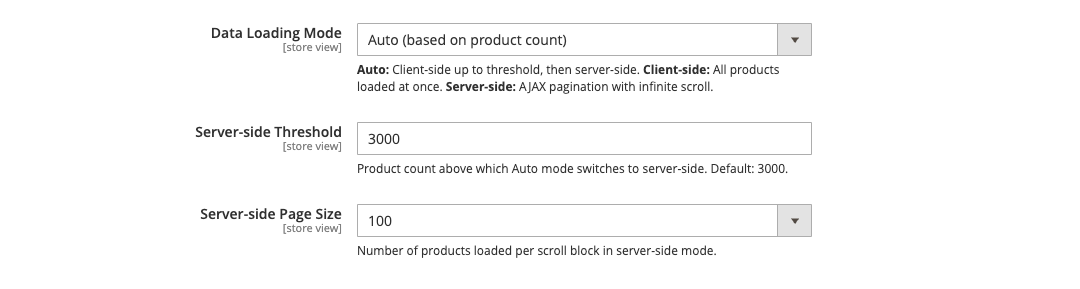
Data Loading Modes Explained
Auto (recommended): The extension automatically selects the best loading strategy based on your catalog size. If your visible product count is below the threshold (default: 3,000), all products load at once for instant filtering and search. If above the threshold, server-side pagination activates automatically.
Client-side: All products are loaded into the browser at once. This provides the fastest search and filtering experience but may cause performance issues with very large catalogs (5,000+ products). Best for stores with fewer than 3,000 products.
Server-side: Products are loaded in batches as the customer scrolls. Search and filtering are performed on the server via AJAX. This mode handles catalogs of any size efficiently but adds a slight delay to search and filter operations. Recommended for stores with 3,000+ products.