Import & Export
5.1 CSV Import
The CSV Import feature lets you upload a spreadsheet file to populate the grid with products and quantities automatically. This is ideal for customers who maintain order lists in Excel or other spreadsheet software.
How to import:
- Click the "Import CSV" button in the toolbar
- Select your CSV file from the file picker
- The import modal opens showing a preview of your file's content
- Separator — The extension auto-detects the separator (comma, semicolon, tab, or pipe). You can override it manually if needed.
- First row is header — Check this box if the first row of your file contains column headers (e.g., "SKU", "Qty") rather than product data.
- Column mapping — Use the dropdown above each column to map it to the appropriate field:
- Identifier column — Select which column contains the product identifier (SKU, EAN, MPN, or Reference). At least one identifier column is required.
- Quantity column — Select which column contains the order quantities.
- Skip — Columns that should be ignored.
- Click "Import" to process the file
The extension looks up each identifier in your catalog, matches it to a product, and sets the corresponding quantity in the grid. If any identifiers are not found, a notification shows the count of unmatched items.
Supported File Format
- File type: CSV (
.csv) - Separators: Comma (
,), semicolon (;), tab, pipe (|) - Encoding: UTF-8 recommended
- Example file content:
SKU;Qty
24-MB01;5
24-MB04;10
24-WG09;3
5.2 Quick Paste
Quick Paste allows you to paste a list of product identifiers (SKU, EAN, etc.) directly — for example, copied from an Excel column or a text document.
How to use Quick Paste:
- Click the "Quick Paste" button in the toolbar
- The Quick Paste modal opens
- Paste your list — Paste your product identifiers into the text area (one per line, or separated by tabs/semicolons)
- Select identifier type — Choose whether the pasted values are SKUs, EANs, MPNs, or References
- Click "Find Products" — The extension searches your catalog and displays the matches
- Review the results — Check or uncheck individual products. Use "Select All" / "Deselect All" for convenience.
- Click "Add to Grid" — The matched products are highlighted in the grid with the specified quantity
5.3 Export
The Export feature lets you download product data from the grid. You can export all visible products or only products with entered quantities.
Click the "Export" dropdown button in the toolbar and select a format:
| Format | Description |
|---|---|
| CSV | Comma-separated values. Opens in any spreadsheet application. |
| XLSX | Microsoft Excel format. |
| Portable Document Format. Suitable for printing or sharing. | |
| XML | Extensible Markup Language. Suitable for system integrations. |
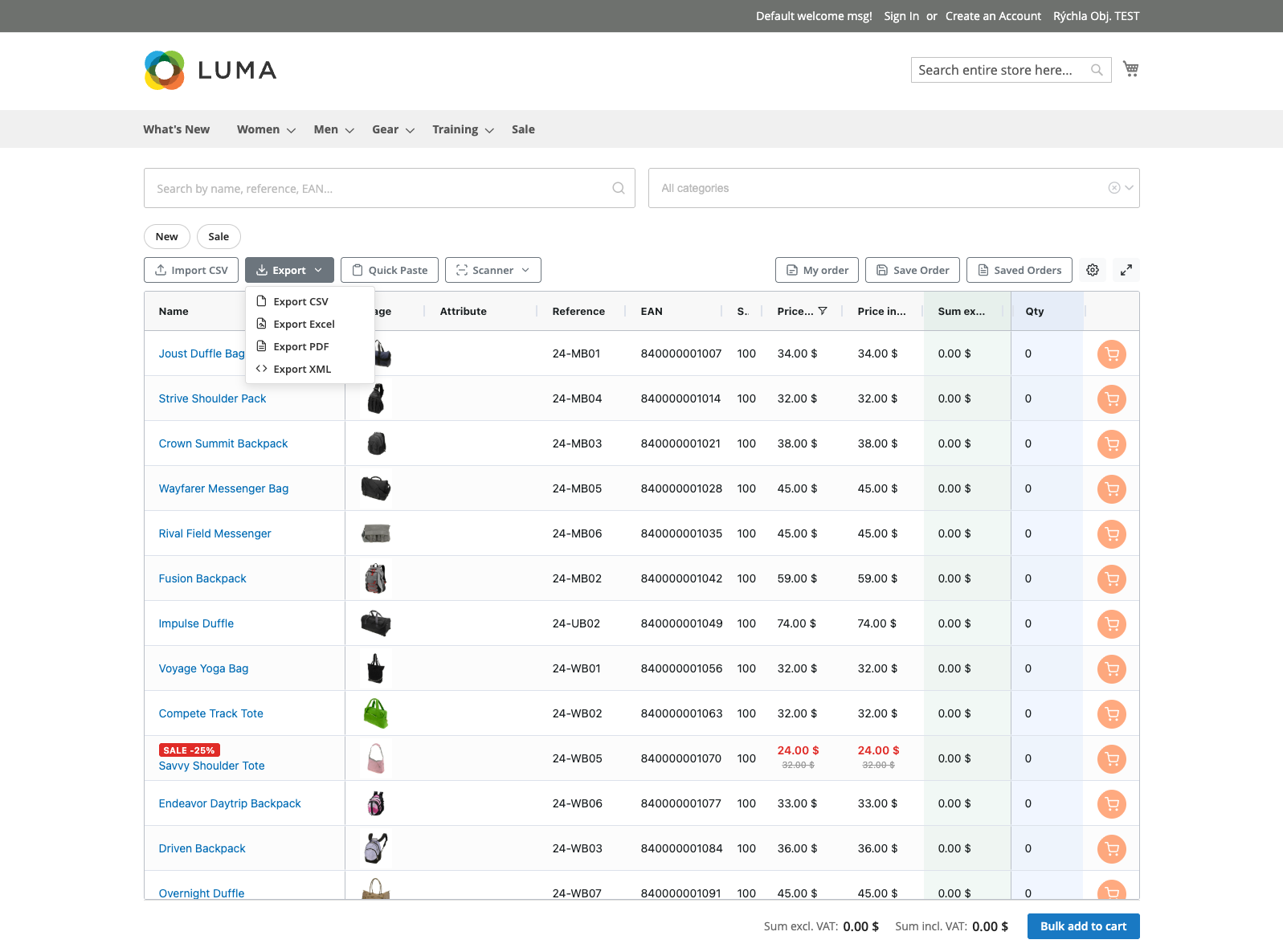
The exported file includes the product name, SKU, EAN, price, quantity, and row total. The filename includes a timestamp (e.g., quick-order-2026-03-23.csv).