Frontend — Quick Order Page
4.1 Accessing the Page
The Quick Order page is accessible at https://your-store.com/quickorder. Customers can reach it via the navigation links you configured in Section 3.2, or by entering the URL directly.
If access restrictions are enabled and a customer does not have permission, the page will not be accessible and the navigation link will not be visible to them.

4.2 Page Layout Overview
The Quick Order page consists of four main areas:
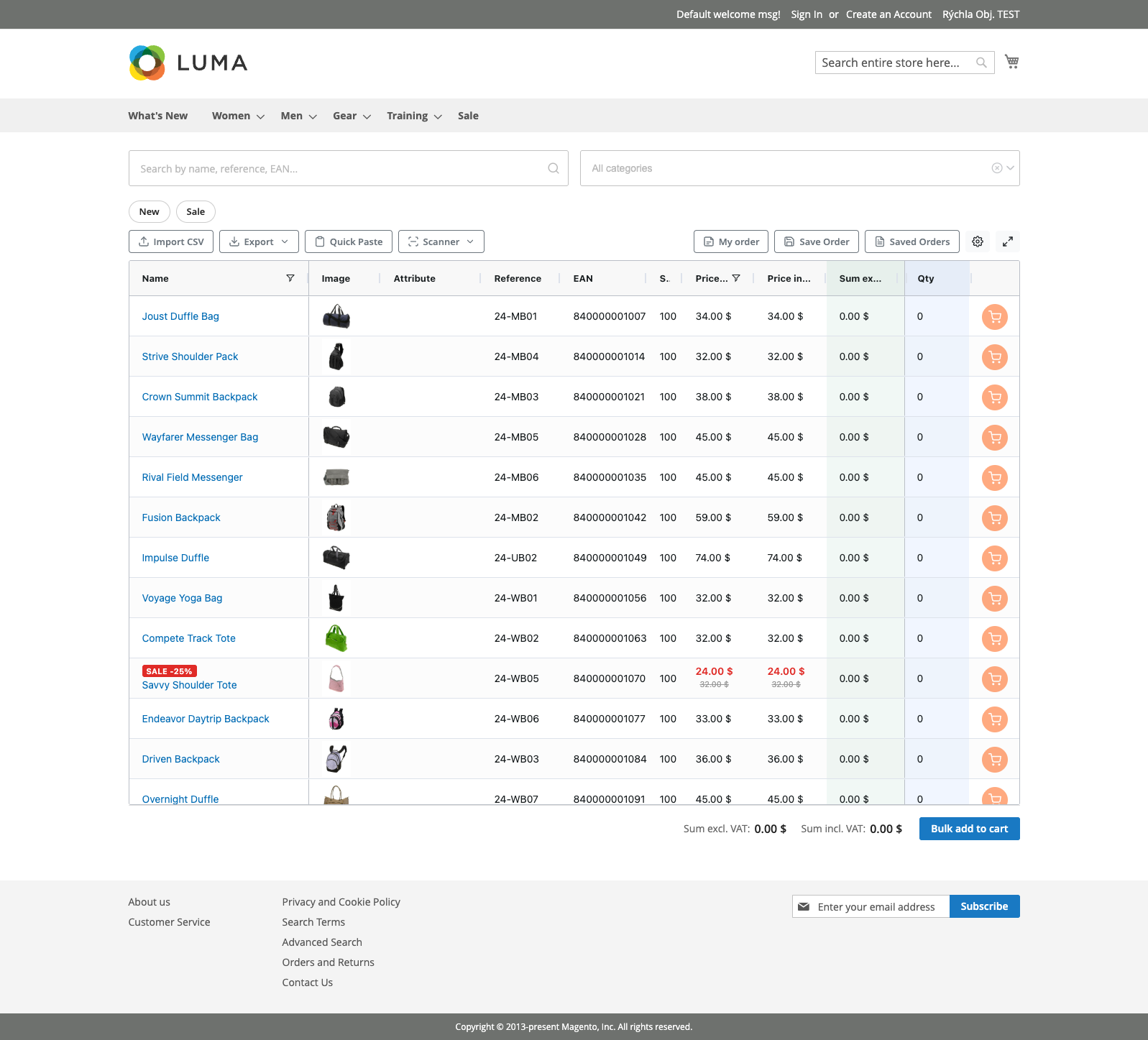
- Header Area — Contains the search bar and category filter
- Toolbar — Action buttons for import, export, scanning, saved orders, and settings
- Product Grid — Spreadsheet-style view of all products with editable quantity fields
- Footer — Order totals and the bulk "Add to Cart" button
4.3 Product Grid
The product grid displays your catalog in a table with the following columns:
| Column | Description | Visible by Default |
|---|---|---|
| Product Name | Product name with optional New/Sale badges. Shows a small product thumbnail on the left. | Yes |
| Image | Larger product image. Click to open a magnified preview. | No |
| Attribute | Variant label for configurable products (e.g., "Red — XL"). | Yes |
| Reference | Product SKU. | Yes |
| EAN | EAN / barcode number. | Yes |
| Stock | Stock availability indicator — displayed as a colored dot (green = in stock, orange = low stock, red = out of stock) or as a number. | Yes |
| MPN | Manufacturer Part Number. | No |
| Weight | Product weight. | No |
| Manufacturer | Brand / manufacturer name. | No |
| Min Qty | Minimum order quantity. | No |
| Description | Short product description. | No |
| Price (excl. VAT) | Unit price without tax. Shows original price crossed out and discount percentage if the product is on sale. | Yes |
| Price (incl. VAT) | Unit price with tax. Shown or hidden depending on store tax display settings. | Depends on settings |
| Sum (excl. VAT) | Row total: quantity × unit price (excl. tax). Updates in real time. | Yes |
| Sum (incl. VAT) | Row total with tax. Shown or hidden depending on store tax display settings. | Depends on settings |
| Qty | Editable quantity input. Click to enter the desired quantity. | Yes (pinned right) |
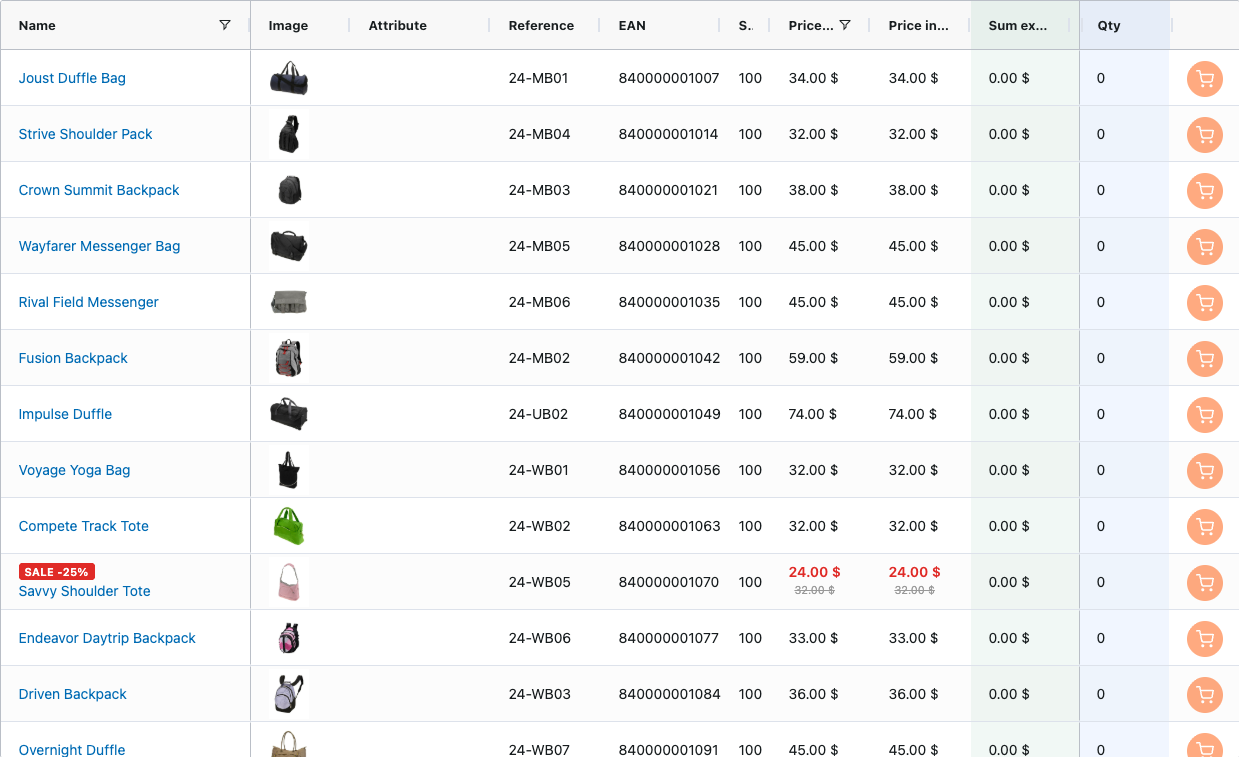
Grid Navigation
- Scroll — Use the mouse wheel or scrollbar to browse through products. In server-side mode, new products load automatically as you scroll down.
- Click a Qty field — Click directly on any quantity cell to enter a number. Press Enter or Tab to confirm and move to the next row.
- Sort columns — Click any column header to sort ascending/descending.
- Resize columns — Drag the edge of a column header to adjust its width.
- Reorder columns — Drag a column header to a new position.
4.4 Search & Filtering
Text Search
The search bar at the top of the page filters products in real time as you type. It searches across the product name, SKU, and EAN fields simultaneously. The search is accent-insensitive — typing "cafe" will match "café."
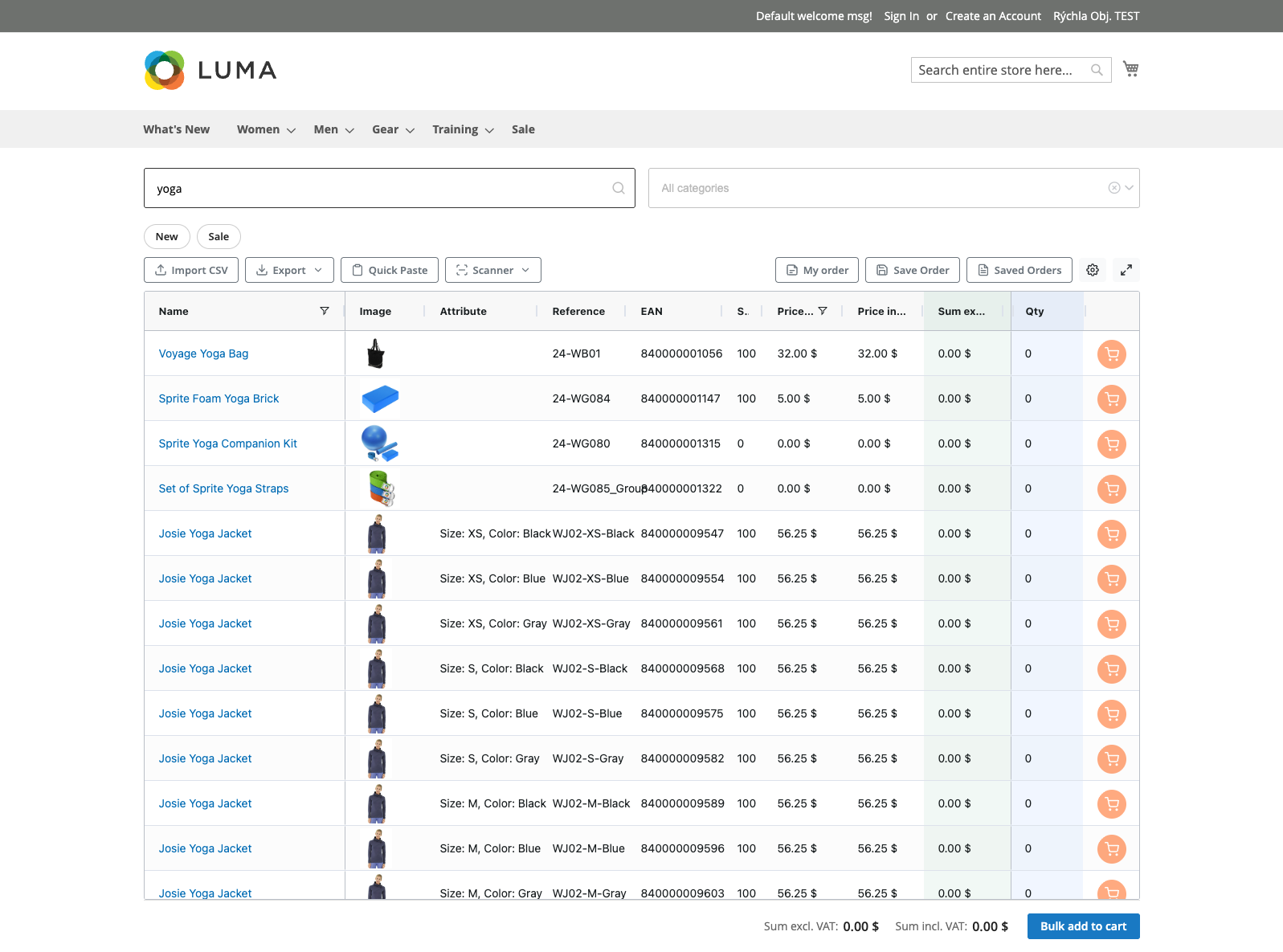
Category Filter
Click the category dropdown next to the search bar to open a hierarchical category tree. You can select multiple categories at once. The grid updates immediately to show only products in the selected categories.

Filter Pills
Below the search bar, filter pills appear when your catalog contains products tagged as New or On Sale. Each pill shows the count of matching products. Click a pill to filter the grid to show only those products. Click again to deactivate the filter.

Show Ordered Items Only
In the toolbar, the "Show ordered" button filters the grid to display only products where you have already entered a quantity. This is useful for reviewing your order before adding to cart. The badge on the button shows the number of products with quantities.

4.5 Ordering Products
To order products:
- Find the product — Use search, category filters, or scroll through the grid
- Click the Qty field — Click on the quantity cell in the product's row
- Enter the quantity — Type the desired quantity and press Enter or click away
- The Sum column updates immediately to show the row total
- The footer totals update in real time
You can enter quantities for as many products as you need. The extension keeps track of all entered quantities even if you filter or search — your quantities are preserved.

Quantity Validation
- Quantities must be zero or positive — negative values are not allowed
- If a product has a minimum order quantity, the extension enforces it (the minimum is displayed in the Min Qty column)
- If a product has limited stock, the maximum available quantity is shown as a hint below the input field
4.6 Adding to Cart
Once you have entered quantities for all desired products:
- Review your order using the "Show ordered" button to see only products with quantities
- Check the totals in the footer (displayed both excluding and including tax when applicable)
- Click the "Add to Cart" button in the bottom-right corner

The extension sends all products to the cart via AJAX — the page does not reload. A success notification appears at the top of the page confirming how many products were added. The cart icon badge in the toolbar updates immediately.
If some products could not be added (e.g., due to stock changes), individual error messages are shown for each failed product, while the remaining products are still added to the cart.
After a successful add-to-cart, all quantities are reset to zero and the totals clear automatically.
Single Product Add to Cart
If the per-row "Add to Cart" button is enabled, each row also has its own small cart button. Click it to add only that specific product to the cart without affecting other entered quantities.