Grid Customization
The product grid is fully customizable. Your preferences are saved automatically so the grid looks the same each time you visit.
8.1 Column Visibility
Click the Settings button (gear icon) in the toolbar to open the settings dropdown. Toggle columns on/off using the switches:
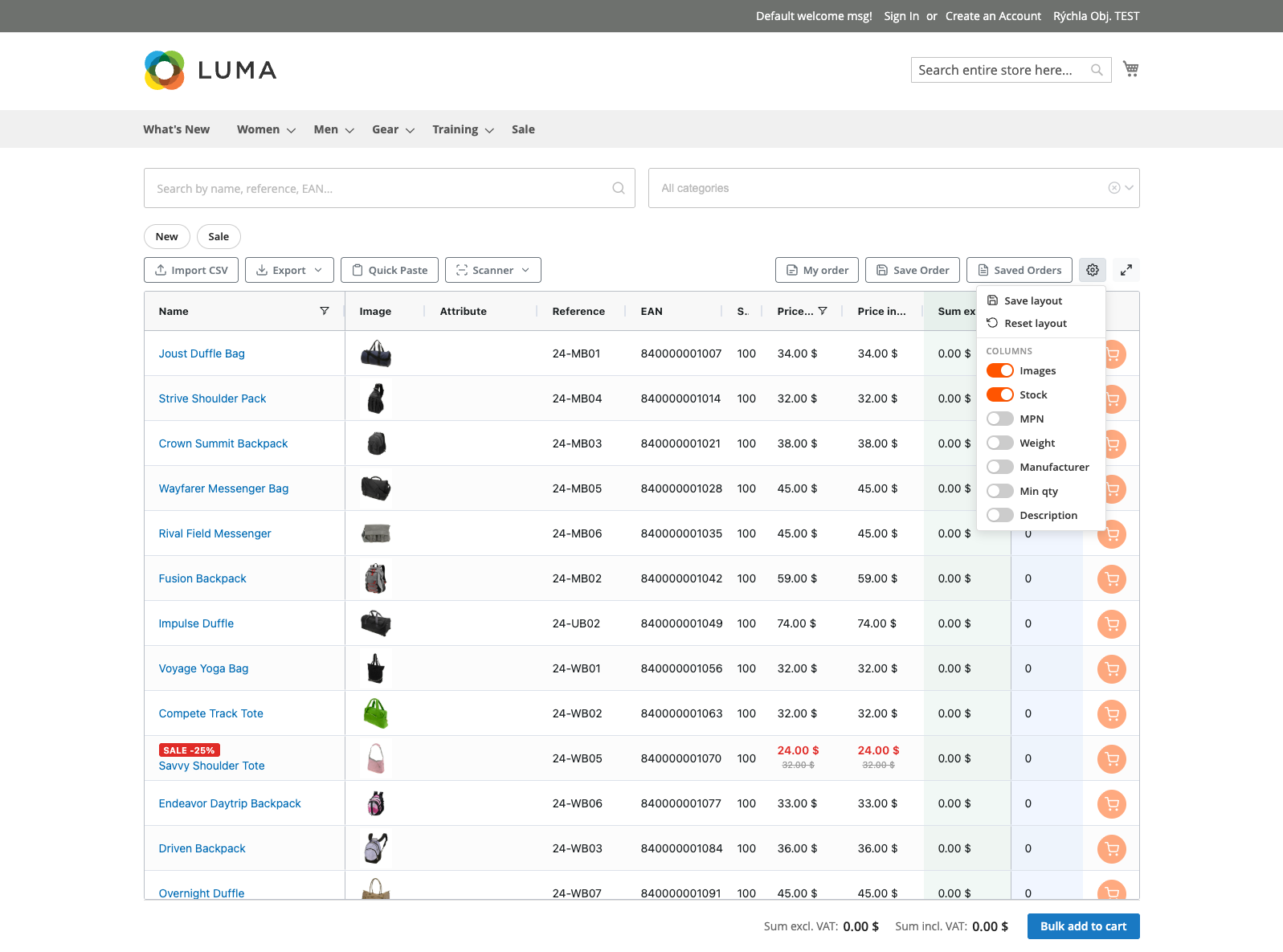
Available column toggles:
- Images
- Attributes
- Reference (SKU)
- EAN
- Stock
- MPN
- Weight
- Manufacturer
- Min Qty
- Description
- Price
- Price incl. tax
- Sum
- Sum incl. tax
The Product Name and Qty columns are always visible and cannot be hidden.
8.2 Column Reordering & Resizing
- Reorder: Drag any column header to a new position in the grid
- Resize: Hover over the right edge of a column header until the resize cursor appears, then drag to adjust the width
- Pin columns: Right-click a column header to access pinning options. Pinned columns stay visible when scrolling horizontally. By default, the Product Name column is pinned to the left and the Qty column is pinned to the right.
8.3 Saving & Resetting Layout
After customizing the grid to your preference:
- Click Settings → Save Grid Layout to save your column arrangement, widths, visibility, and pinning
- Click Settings → Reset Grid Layout to revert to the default column configuration
For logged-in customers: Layout preferences are saved to your account and persist across devices. For guest visitors: Layout preferences are saved in the browser's local storage and persist within the same browser.
8.4 Fullscreen Mode
Click the fullscreen button (expand icon) in the toolbar to maximize the grid to fill your entire screen. This provides the most workspace for browsing and ordering. Press Escape or click the fullscreen button again to exit.