10. Barcode Scanner
Scan product barcodes to instantly find and add products to the order. Two scanning methods are available.
Camera Scanner
Uses your device's camera to scan barcodes. Works on phones, tablets, and laptops with a webcam. Requires HTTPS.
- Click Scan barcode > Camera scanner
- A dark modal opens with a live camera feed and a scanning target area
- Point the camera at a barcode (EAN-13, EAN-8, UPC-A, or Code-128)
- On successful scan: a beep plays, the product is found in the grid, its quantity increments by 1, and the row flashes green
- Scan the same barcode again to increment the quantity further
- Click X or press Escape to close the scanner
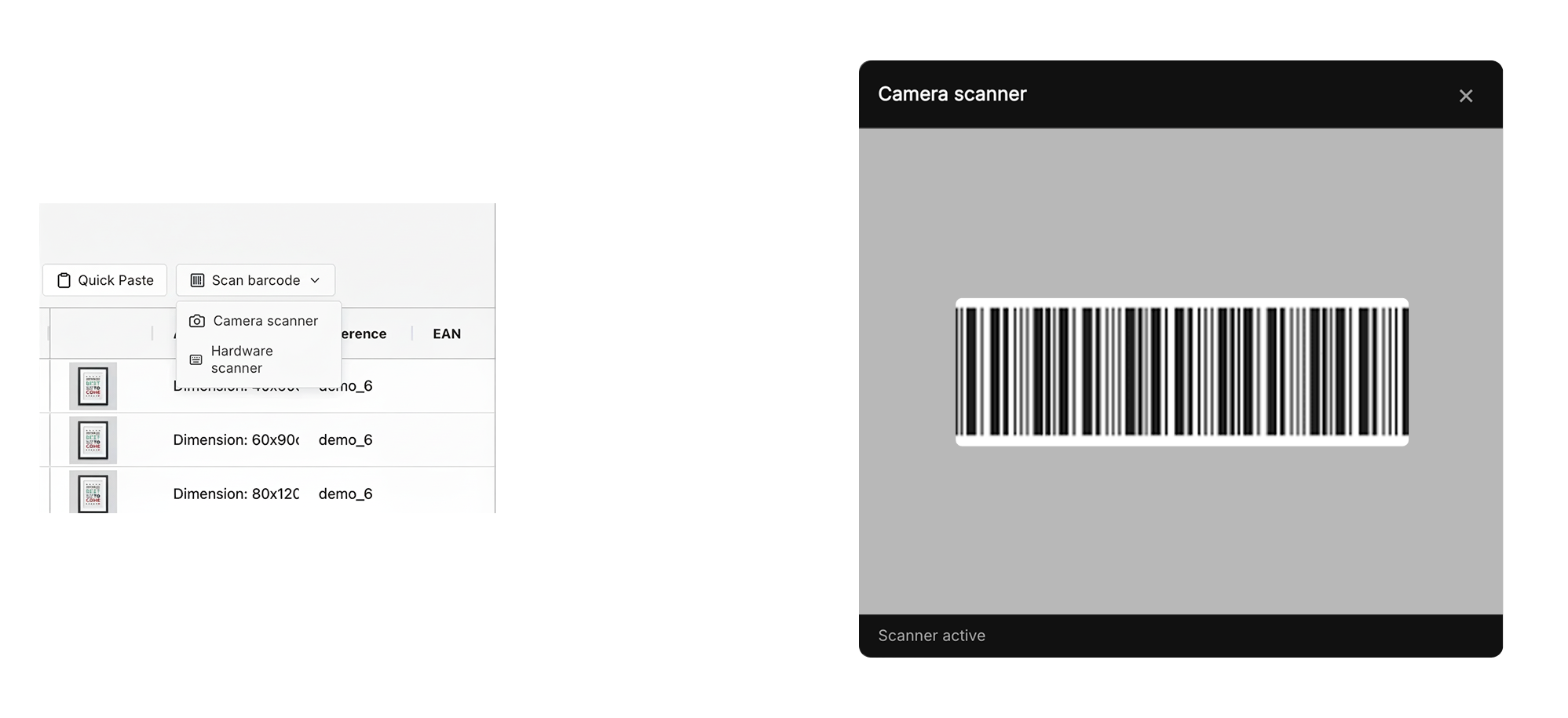
Supported barcode formats: EAN-13, EAN-8, UPC-A, Code-128.
Hardware USB Scanner
Use any USB barcode scanner that outputs keyboard input (virtually all handheld scanners).
- Click Scan barcode > Hardware scanner
- The hardware scanner mode activates - an "Active" badge appears on the menu item
- Scan a barcode with your USB scanner
- The scanner types the barcode and presses Enter automatically
- The product is found, quantity increments by 1, the row flashes green and a beep plays
- Click Hardware scanner again to deactivate
Note: The same barcode scanned within 1.5 seconds is ignored to prevent double-scans. The hardware scanner detects USB input by measuring keystroke timing - characters arriving faster than 50 ms apart are treated as scanner input.