8. Multi-Format Export
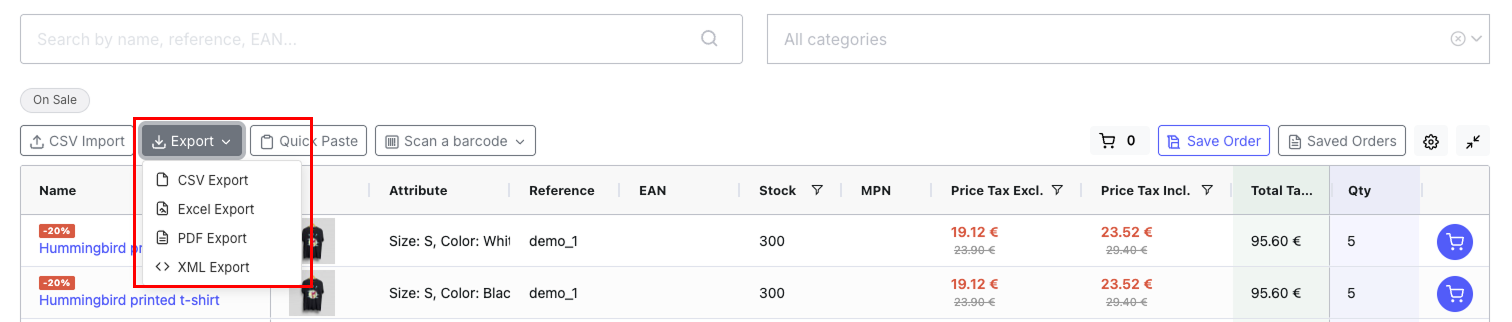
Export the current order (all products with quantity > 0) in four formats.
How to Export
- Enter quantities for the products you want to export
- Click the Export dropdown in the toolbar
- Select the format: CSV, Excel (XLSX), PDF, or XML
- The file downloads automatically
Export Formats
| Format | Best for | Details |
|---|---|---|
| CSV | Importing into other systems, ERP integration | Plain text, comma-separated. Includes all visible columns. |
| XLSX | Purchase approval, sharing with colleagues | Excel file with formulas for sum calculations, currency and weight formatting, colored stock indicators, bold headers, auto-filter, and totals row. Zero external dependencies. |
| Printing, email attachments, archives | Clean table layout with borders. White-label (no module branding). Automatic page breaks for long lists. | |
| XML | System integration, automated processing | Structured XML with product data and quantities. |
Note: The export includes only rows with a quantity greater than zero. The columns in the export file match the currently visible columns in the grid.
The file is named qog-export-YYYY-MM-DD-HHmmss.{format} (e.g., qog-export-2026-02-12-143022.xlsx).
