11. Saved Order Templates
Repeat customers can save their frequently ordered product lists and reload them with one click.
Storage
| Customer type | Storage location | Default limit |
|---|---|---|
| Logged-in customers | Server database (linked to customer account) | 50 templates |
| Guest visitors | Browser localStorage | 20 templates |
When a guest creates an account, both sources are visible - localStorage entries appear with a "(local)" badge.
Saving an Order
- Enter quantities for the products you want to save
- Click Save order in the toolbar
- Enter a name for the template (max 128 characters), e.g., "Weekly restaurant supply"
- Click Save

Loading a Saved Order
- Click Saved orders in the toolbar
- A list of all saved templates appears with name and date
- Click Load next to the template you want
The grid quantities are replaced with the saved values. If some saved products no longer exist in the catalog, a warning toast shows how many were skipped.
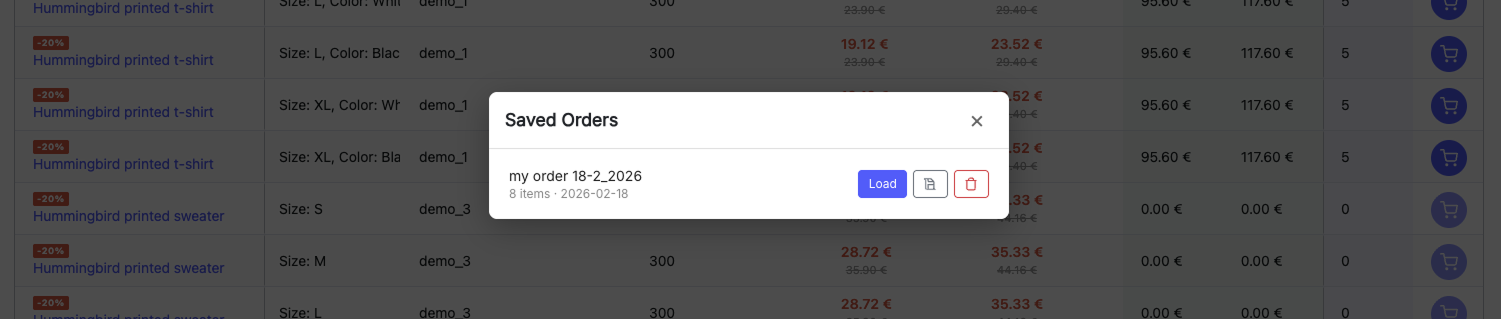
Overwriting a Saved Order
Click Overwrite next to a saved template. The current grid quantities replace the saved ones. A confirmation dialog appears before overwriting.
Deleting a Saved Order
Click the Delete (trash) icon. A confirmation dialog appears. Deleted templates cannot be recovered.