6. Working with the Grid
Sorting
Click any column header to sort the grid by that column. An arrow indicator shows the sort direction. Click again to reverse. Click a third time to clear the sort.
Resizing Columns
Hover over the border between two column headers. When the cursor changes to a resize handle, click and drag left or right.
Reordering Columns
Click and hold a column header, then drag it to a new position. A visual indicator shows where the column will be dropped.
Show/Hide Columns
Click the Settings (gear icon) button in the toolbar to open the settings dropdown. Under the "Columns" section, toggle individual columns on or off.
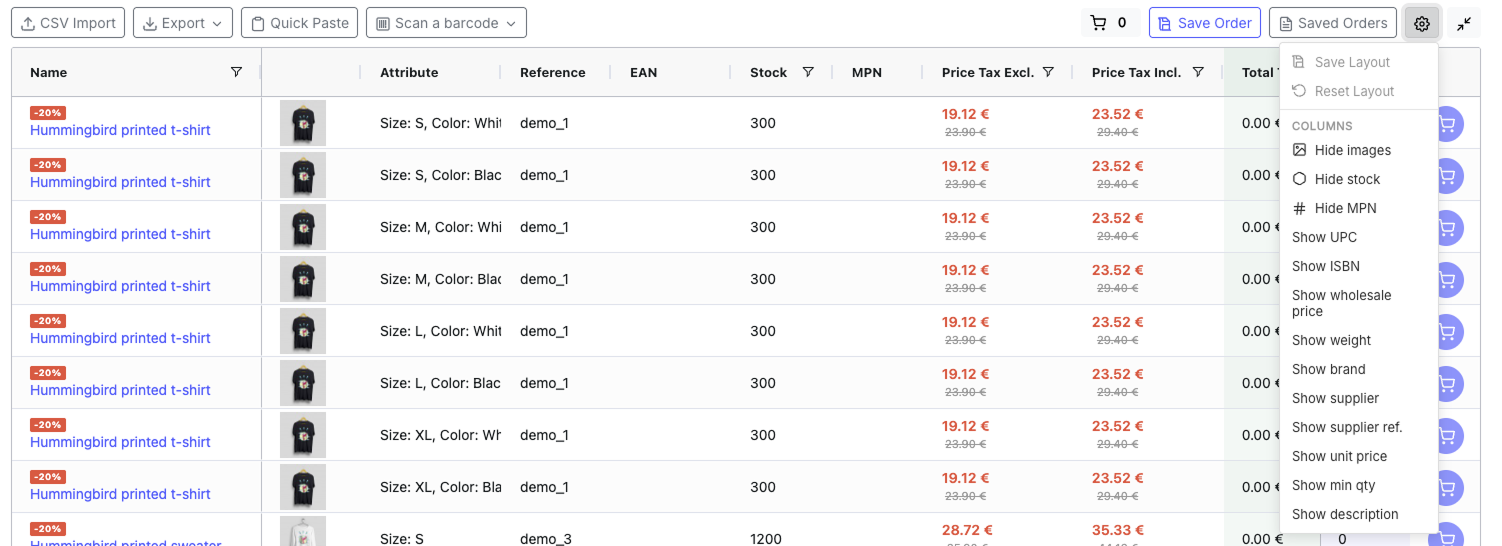
Save / Reset Layout
If Remember customer layout is enabled in the admin:
- Save grid layout - Saves your current column arrangement (order, widths, visibility) in the browser. It will be restored automatically on your next visit.
- Reset grid layout - Reverts to the default column arrangement set by the shop administrator.
Entering Quantities
Click the Qty cell of a product row and type a number. The quantity is validated against:
- Minimum quantity (if set for the product)
- Available stock (if out-of-stock ordering is disabled)
After entering a quantity:
- The row sum columns update automatically (qty × price)
- The footer totals update in real time
- Press Enter to move to the next row's Qty cell
