5. Add the navigation link (Theme App Extension)
To let customers find the page, add a link to your storefront navigation via the theme editor.
Step 1 — Open the theme editor
From the General tab click Open Theme Editor, or go to Online Store → Themes → Customize.
Step 2 — Add a Quick Order block
In a section, choose Add block and pick the Quick Order extension. Two blocks are available:
| Block | Where to use it |
|---|---|
| Quick Order Link | A compact text link — designed to sit inside your Header section. |
| Quick Order Button | A styled button (custom colours, radius, font size, padding, alignment) you can drop into most sections. |
The blocks only appear in the block picker while your subscription is active (they're gated by the billing metafield). If you don't see them, check Plan & Billing.
Step 3 — Configure the block
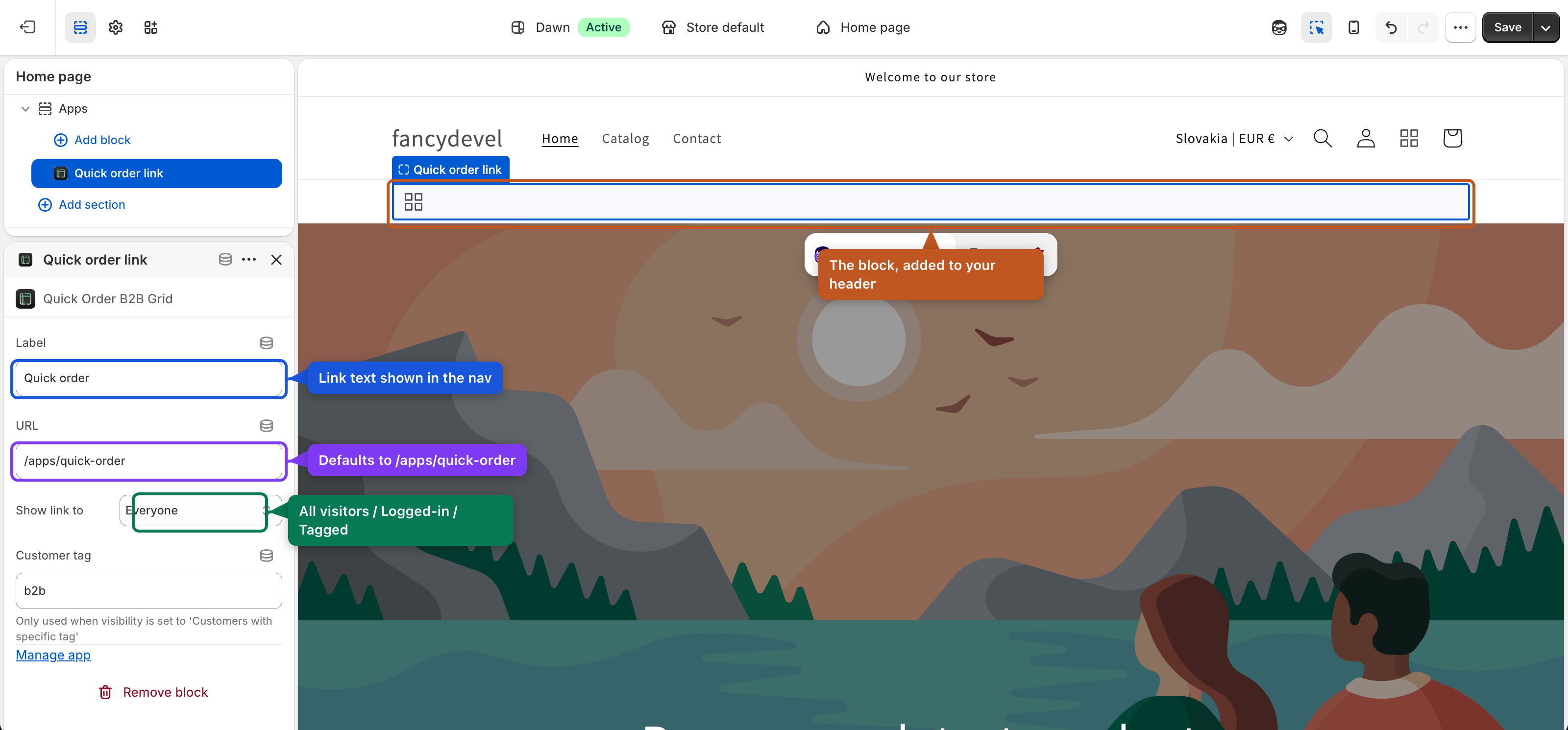
Select the added block to open its settings — a Label, a URL, a Visibility choice and a Customer tag.
| Quick Order Link | Default |
|---|---|
| Link label | Quick order |
| Link URL | /apps/quick-order |
| Visibility | All visitors / Logged-in / Customers with specific tag |
| Customer tag | b2b |
| Quick Order Button | Default |
|---|---|
| Button text | Quick Order |
| Link URL | /apps/quick-order |
| Background / Text colour | #1a1a1a / #ffffff |
| Border radius / Font size / Padding | 8 / 16 / 16 px |
| Alignment | Left (Left / Center / Right) |
| Visibility · Customer tag | All visitors · b2b |
Step 4 — Save
Click Save in the theme editor and visit your storefront — the link/button now appears where you placed it.