6. The Quick Order page at a glance
The page has four areas: a filter bar, a toolbar, the data grid, and a footer.
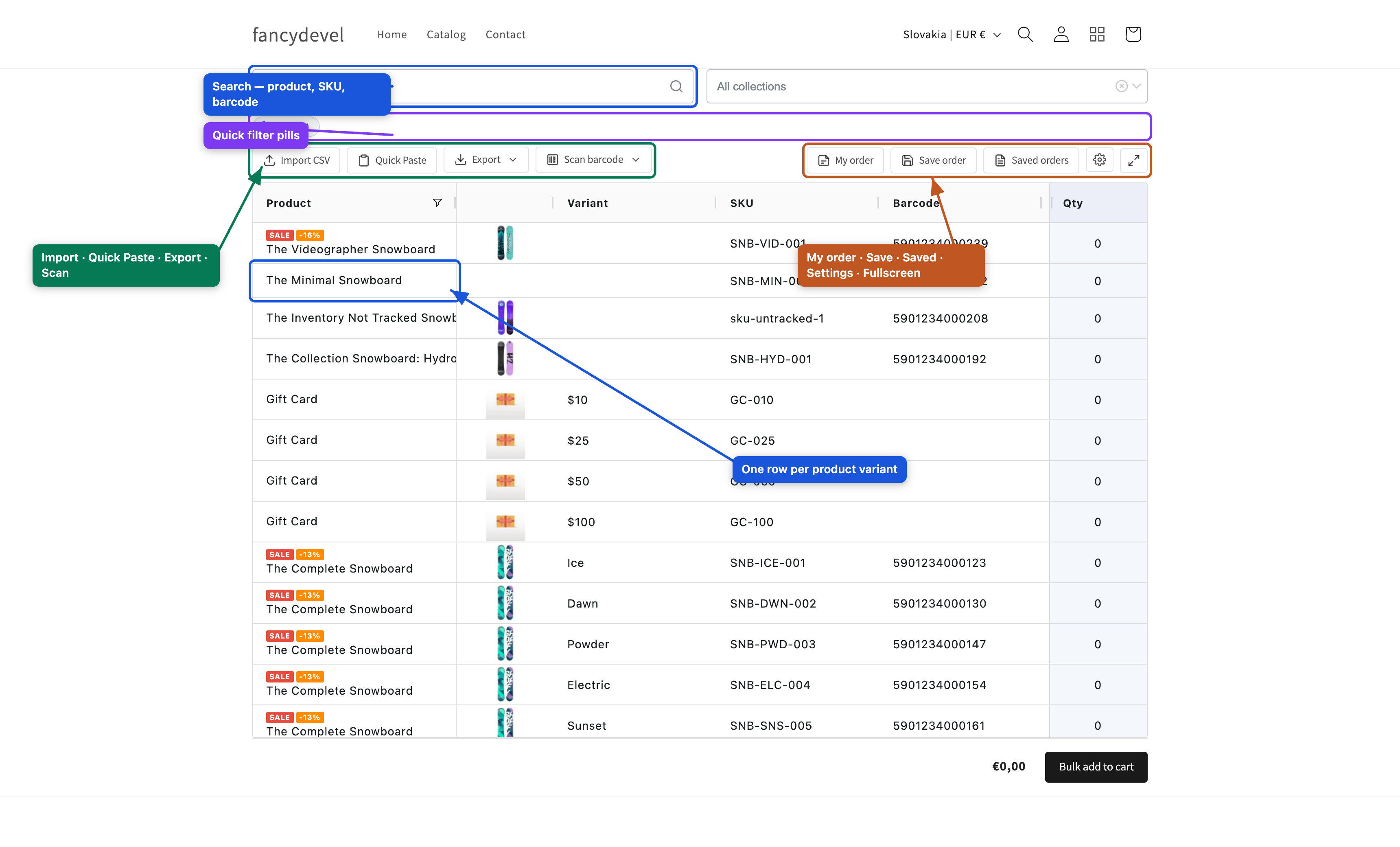
| Area | Contents |
|---|---|
| Filter bar | Search box · collections dropdown · quick-filter pills (New / On sale) |
| Toolbar (left) | Import CSV · Quick Paste · Export · Scan barcode |
| Toolbar (right) | My order toggle · Save order · Saved orders · Settings gear · Fullscreen (a cart badge also appears in fullscreen). On narrow screens the secondary actions collapse into a ⋮ menu. |
| Data grid | One row per product variant. Columns: Product · Image · Variant · SKU · Barcode · Stock · Price · Sum · Qty (and a per-row Cart button when enabled). |
| Footer | Reset order (appears once any quantity is set) · running total · Bulk add to cart |
Because the grid can be wider than the theme's content area, it scrolls horizontally — or open Fullscreen to see every column at once.
Catalog view vs "My order" view
The My order button toggles the grid between two views of the same order — you can add to your order in either view and freely switch between them. Switching only changes what's shown; the quantities you've entered are kept, so the two views always stay in sync.
- Catalog (default) — the full product list. Type a quantity in any row to add it to your order; set it back to 0 to remove it.
- My order (the button is highlighted when active, with a small count of products in your order) — shows only the rows you've already given a quantity, so you can review and adjust your order without scrolling the whole catalog. You can still change those quantities here.
Either way, both views build one and the same order, and Bulk add to cart, export and Save order always act on that whole order — no matter which view you're in.
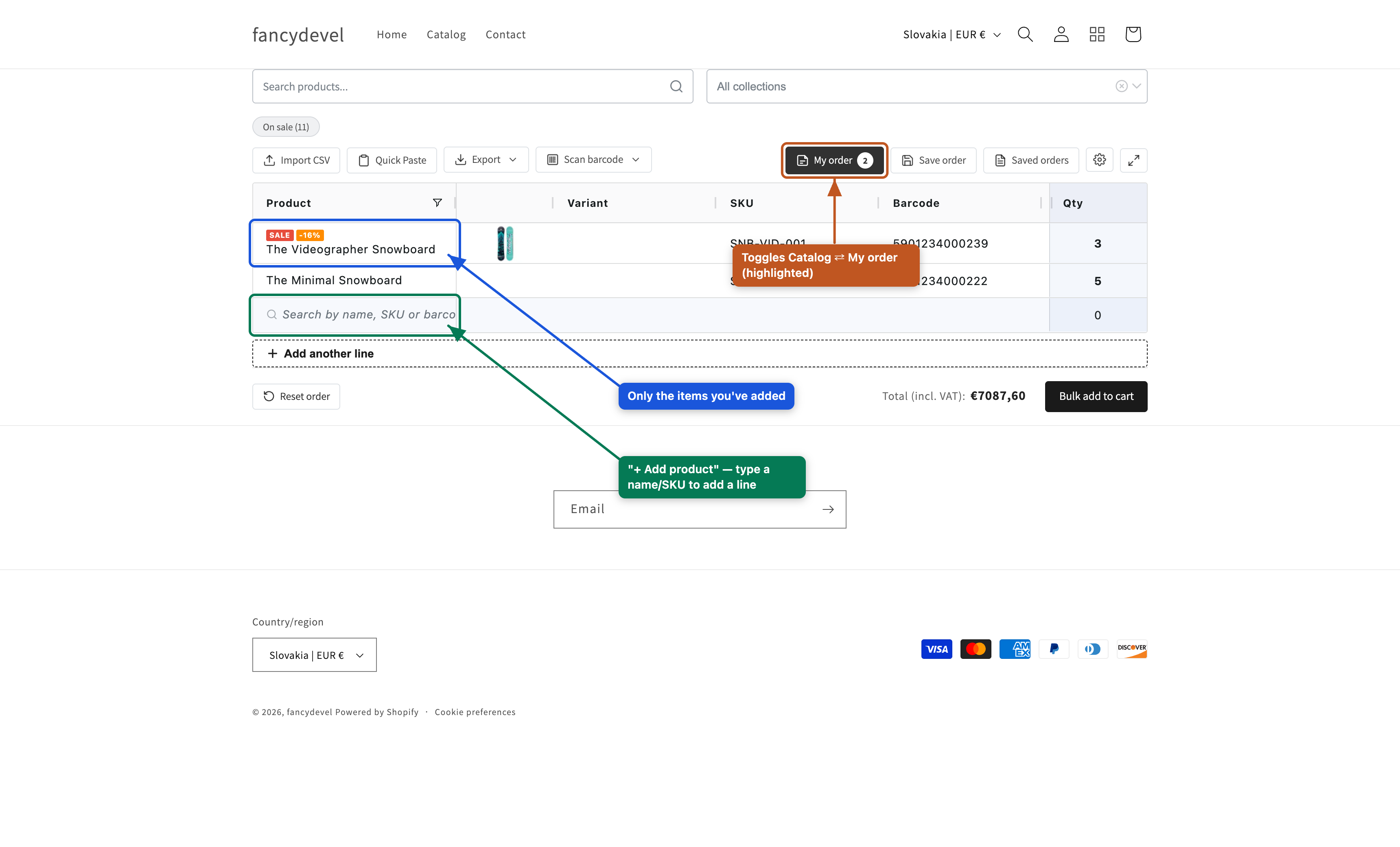
Building an order line by line — "+ Add product"
The My order view also has a "+ Add product" row with a type-ahead search. Start typing a product name or SKU, pick a match from the suggestions, then set its quantity — the line is added to your order (a ✓ confirms it, ✕ discards it). A fresh blank "+ Add product" row is always ready at the bottom, so you can enter an order one line at a time — like a purchase-order sheet — without hunting through the catalog.
Grid columns and quantities
Enter a quantity and the row's Sum (qty × price) and the footer total update instantly.
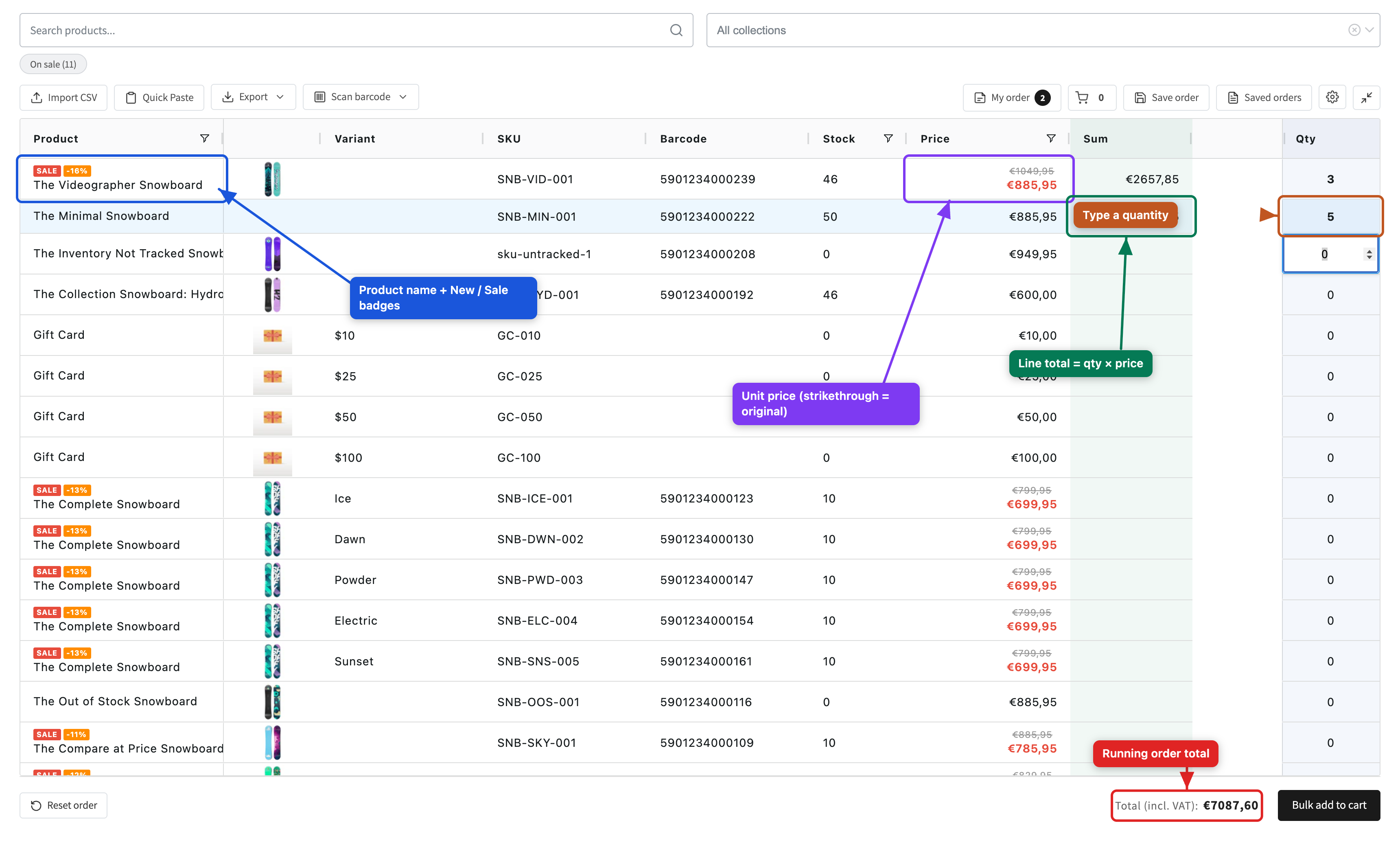
Each row is one variant — a product with Size × Colour shows as several rows, so customers can order specific variants. On-sale items show the struck-through original price next to the current price, with Sale and -X% badges on the name.