8. Working with the grid
- Sort — click a header (click again to reverse, a third time to clear).
- Resize — drag the divider between headers.
- Reorder — drag a header to a new position.
Show/hide columns — the Settings gear
Click the ⚙ Settings icon for:
- Save grid layout — store the current arrangement in your browser
- Reset grid layout — return to the shop's default layout
- Columns — toggle each optional column
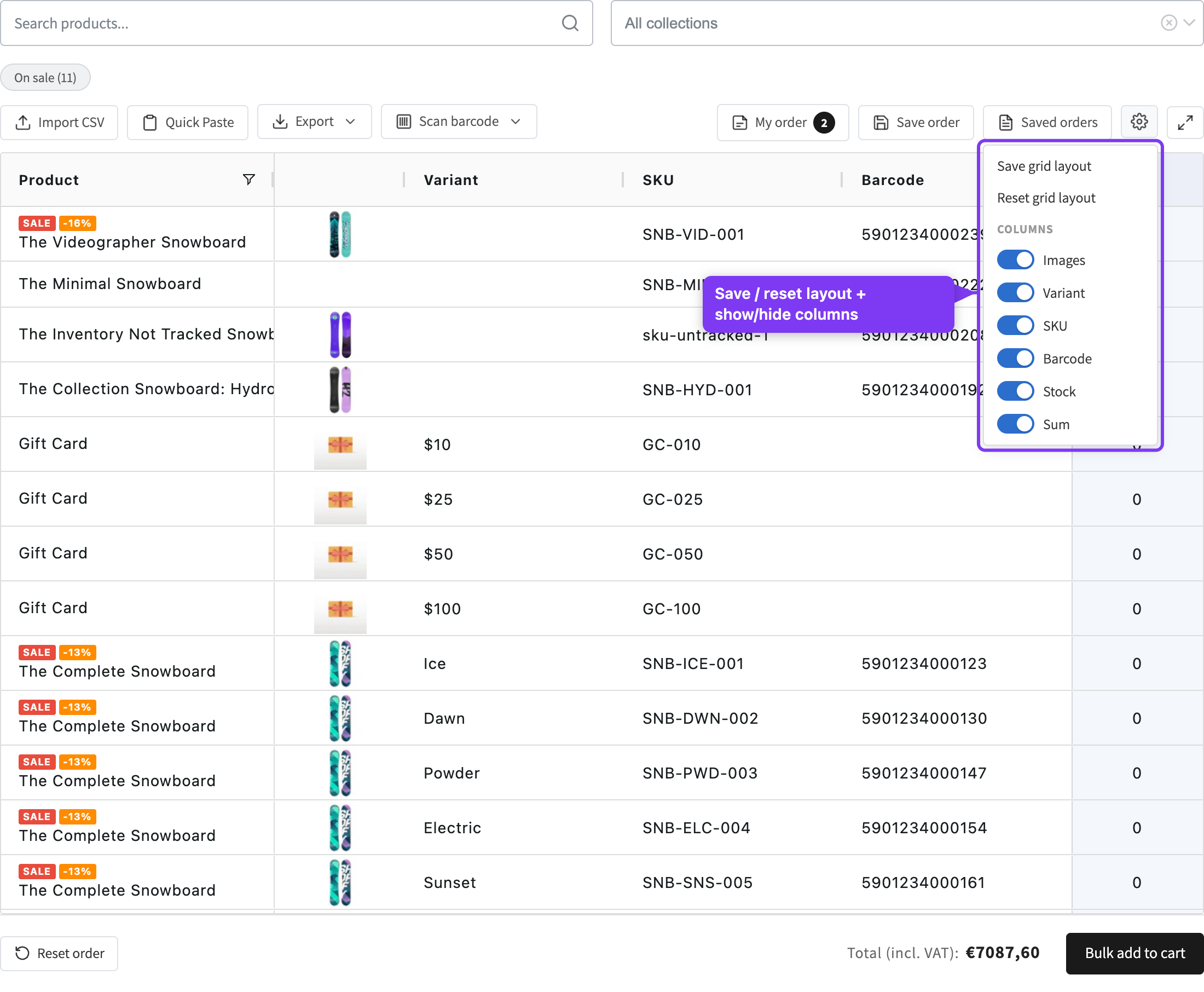
Customers only see toggles for the columns the merchant left visible. If the admin turned off Allow column toggle, the Columns section is hidden.
Entering quantities
Click a Qty cell and type a number.
- Minimum 0; the maximum is the available stock — unless the variant is set to "continue selling", in which case there's no cap.
- If a quantity exceeds stock (and out-of-stock ordering is off), an inline warning
appears (e.g.
max: 50). - Enter or Tab moves to the next row. The Sum and footer totals update live.