1. Introduction
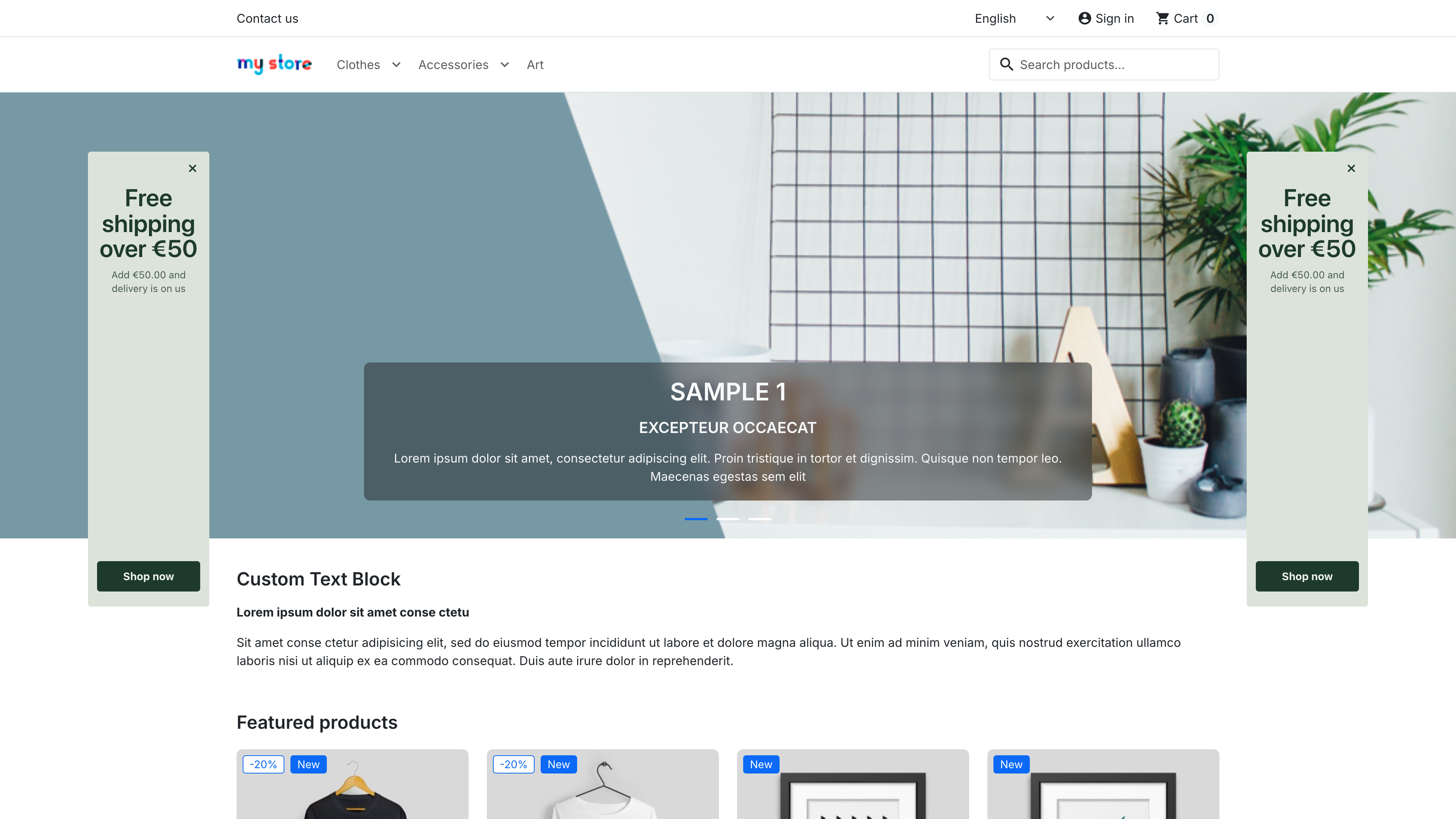
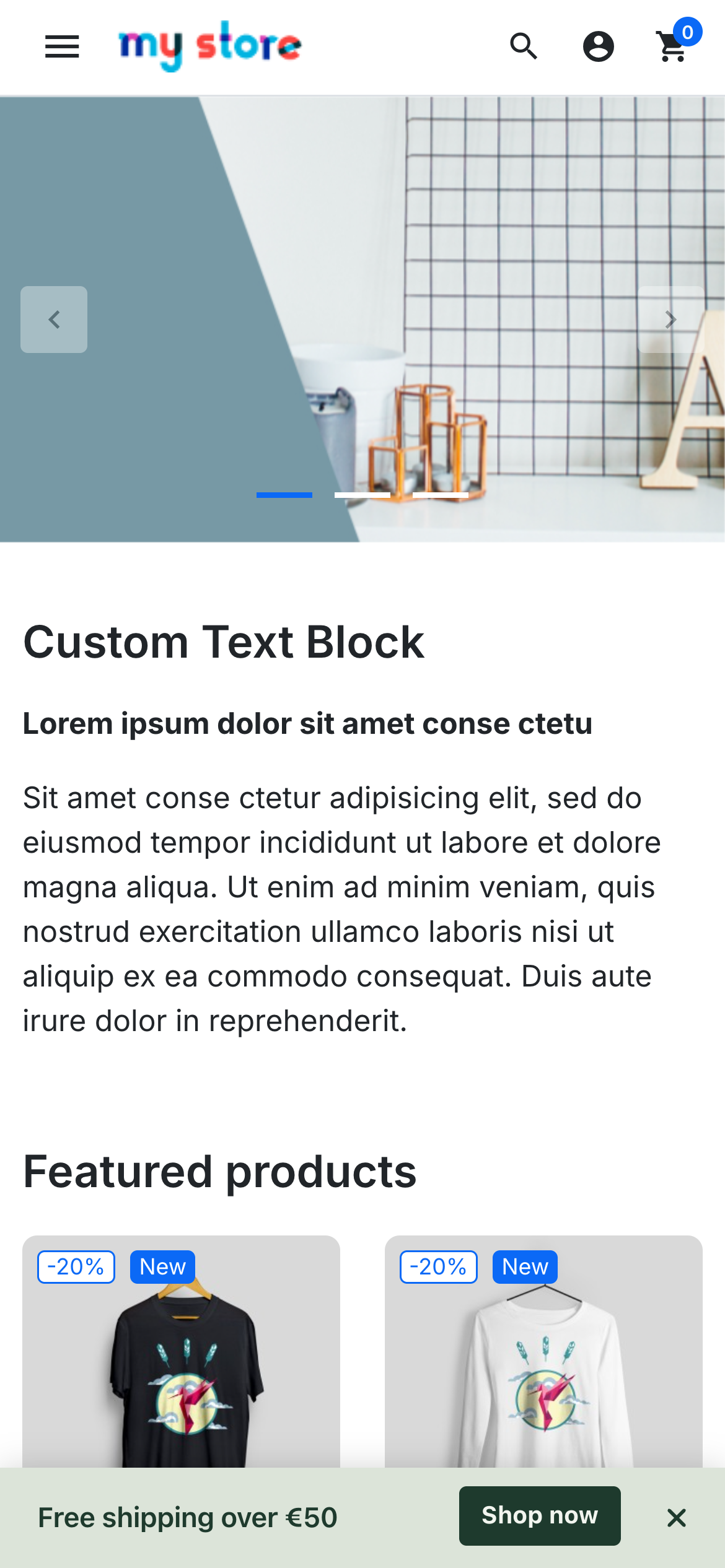
Banner Ads shows promotional banners in the empty space next to your store content: a tall banner on the left, a tall banner on the right, and a slim bar at the top or bottom of the page on phones and wherever the side banners do not fit. A campaign without side banners can also run the bar as an announcement bar on every screen. You build each promotion as a campaign: what it says, how it looks, on which pages and for whom it appears, and when it runs.
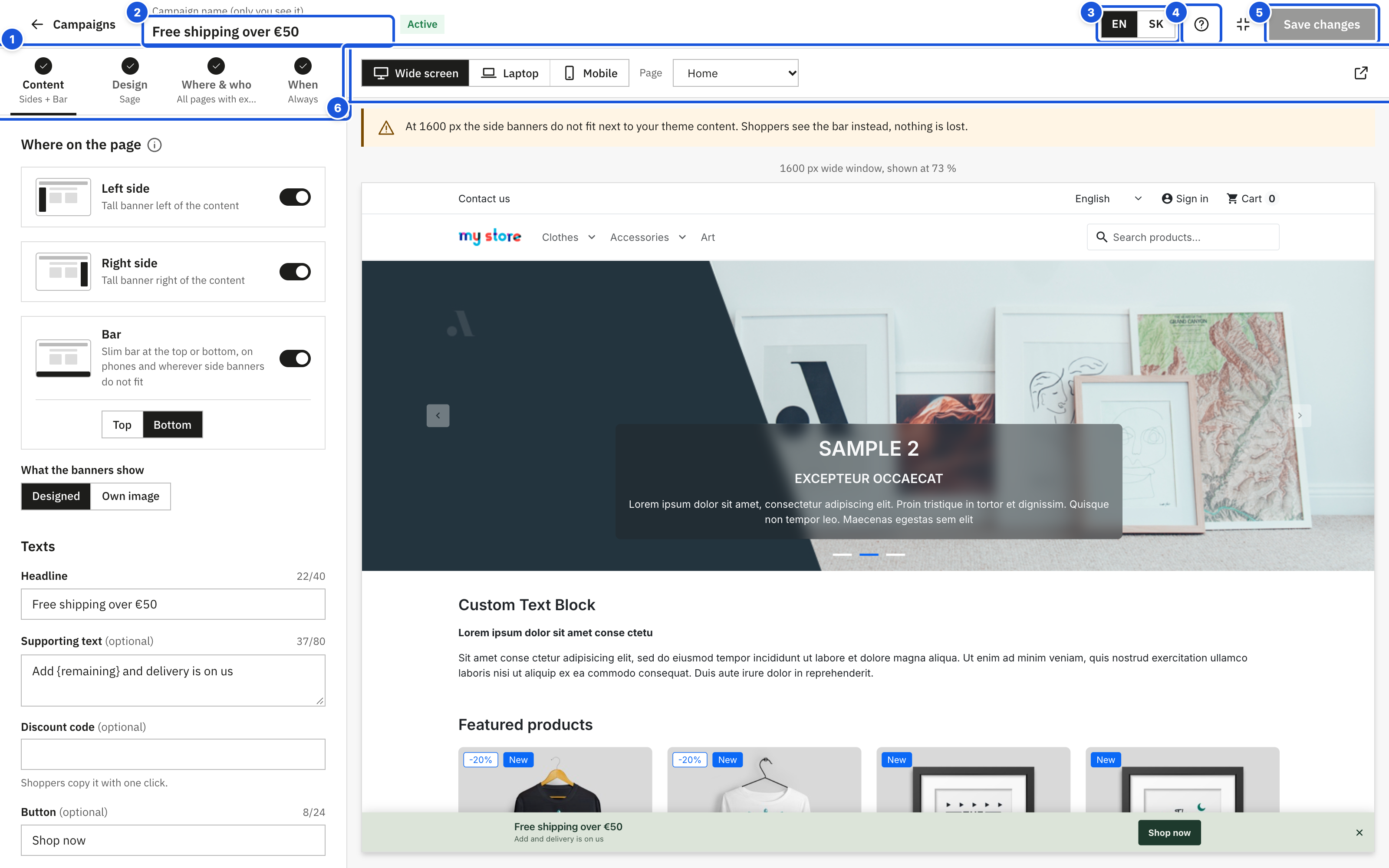
Version 3.0 replaces the old form-based admin with a visual campaign editor. You see your real store in a live preview while you edit, and a short review checks the campaign before it goes live.
Key features
| Feature | What it does for you |
|---|---|
| Designed banners | Write a headline, supporting text, a discount code and a button, pick a style. No image editor needed. |
| Your own images | Upload banners made by your designer. The editor tells you whether an image fits the placement. |
| 12 ready templates | Black Friday, Cyber Monday, Christmas, New Year, Valentine's Day, summer sale, flash sale, free shipping and more, with texts in seven languages. |
| 12 styles | Professional styles for Black Friday, Christmas, sales, fashion, premium and more, shown as real miniature banners. Adjust colours, typography, button and pattern; a built-in contrast check keeps the banner readable. |
| Live preview | Your real store on a wide screen, a laptop or a phone, on the home, category, product or CMS page. |
| Page targeting | All pages, the home page, or any mix of categories, products, brands, suppliers, CMS pages, store pages (cart, checkout, search…) and address fragments, with exceptions such as "all pages except the checkout". |
| Audience and conditions | Logged-in or new visitors, customer groups (only these / all except), phones or computers, countries, languages, currencies and the cart value – for example a free-shipping bar that shows the missing amount. |
| Scheduling | Start and end dates, optional yearly repetition, and a countdown to the end of the offer. |
| Discount code | Shoppers copy the code with one click. |
| Close and auto-hide | Shoppers can close the banner; you decide when it comes back. |
| Media library | All uploaded images in one place, with sizes and where each image is used. |
| Statistics | Views, clicks and click rate of the last 30 days for every campaign. |
| Google Analytics and Meta Pixel | Promotion events for GA4 / Tag Manager and custom Meta Pixel events, sent only when your trackers already run. |
| Page cache ready | Works with full-page cache modules (JPresta, LiteSpeed): campaigns load after the page for the current shopper. |
| Simple by design | Only what most campaigns need is visible; rare options wait under More options, ⓘ buttons explain settings, a short tour opens on your first visit. |
| Multistore | Choose in which shops each campaign runs. |
| Multi-language | Texts, links and images per language, with a warning when a language is incomplete. |
| Accessibility | Descriptions for screen readers, a colour contrast check (WCAG AA), keyboard-friendly banners. |
How the banners appear in your store
- On wide screens the left and right banners sit in the free space next to your theme content and stay visible while the shopper scrolls.
- On phones and narrow screens the bar appears at the top of the page (above your header) or fixed at the bottom of the screen.
- The module measures your theme: side banners appear only when they fit next to the content. If they do not fit (for example on a laptop), shoppers see the bar instead, so the campaign is not lost.
- Only one campaign is shown on a page. If several campaigns could appear, the module picks one (see Where & who).
Where to find the module
Go to Modules > Module Manager, find Side and Mobile Banner Ads with Countdown Timer and click Configure. The module opens on the Campaigns page inside the PrestaShop back office. The back-office header and menu stay visible on every page of the module, the campaign editor included. The module navigation has two sections:
- Campaigns – the list of your campaigns and the New campaign button.
- Settings – display settings that apply to all campaigns.
Getting help
The Getting started box on the Campaigns page has an I need help button that opens the contact form on PrestaShop Addons. Please include your PrestaShop version, your theme and a short description (a screenshot helps a lot).