8. Preview
The right half of the editor shows your real store with the campaign you are editing. Every change appears in the preview within a moment, before anything is saved. Shoppers never see the preview.
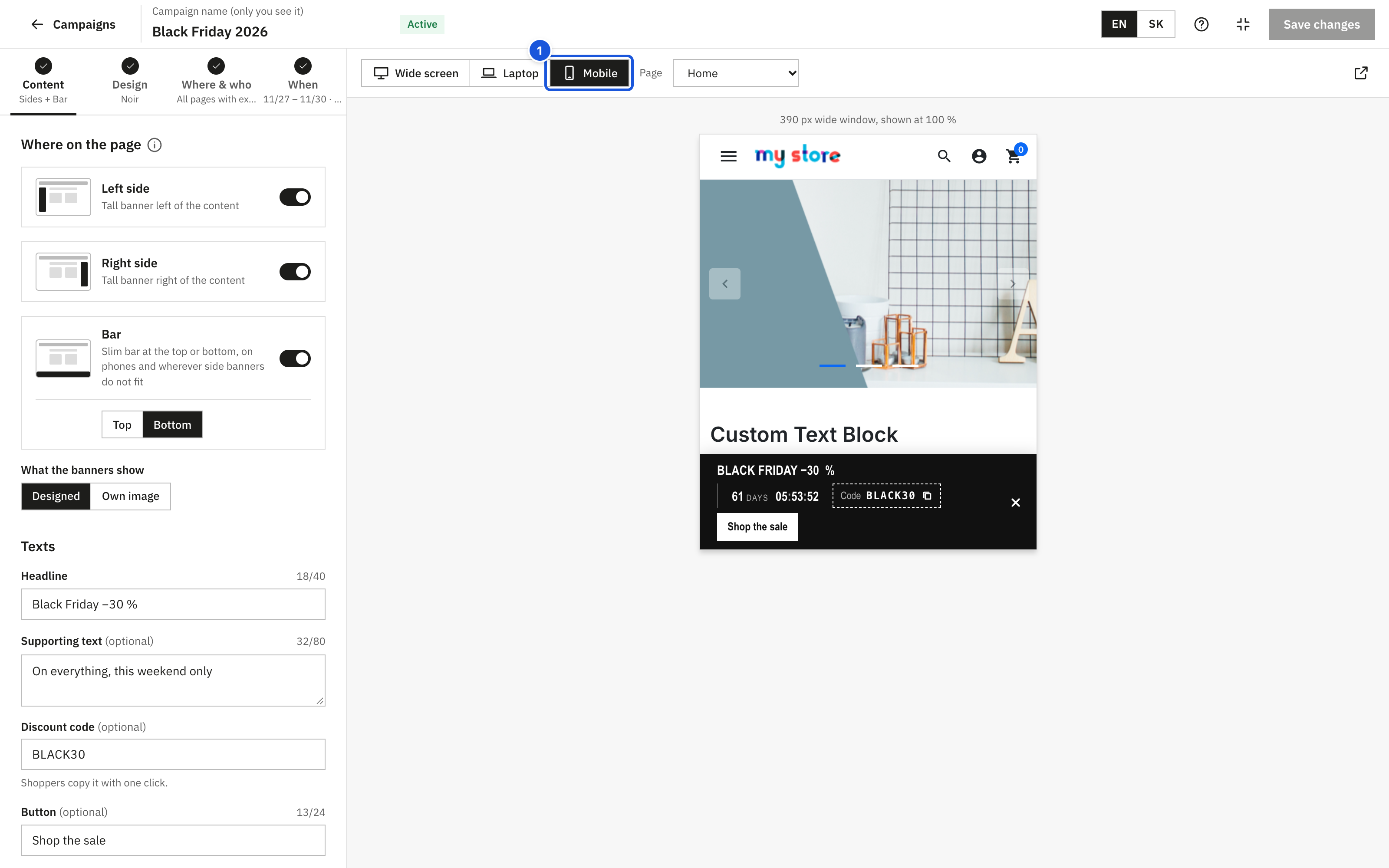
Device
| Button | Window width | Use it to check |
|---|---|---|
| Wide screen | 1920 px | The side banners next to your content |
| Laptop | 1366 px | Whether the side banners still fit, or the bar takes over |
| Mobile | 390 px | The bar |
Above the store you see the simulated width and the zoom, for example "1920 px wide window, shown at 53 %". The preview is scaled to fit your screen, so text may look smaller than in reality.
Page
The Page menu switches between Home, Category, Product, CMS page and Clean preview, plus Brand page, Supplier page or Selected page when the campaign targets brands, suppliers or special pages. The pages follow your targeting: if the campaign targets selected categories, the preview opens one of them.
If the campaign does not appear on the selected page, a notice says "The campaign does not appear on this page. See the rule in Where & who." The preview then shows the page without the banner, exactly as shoppers would see it.
In a multistore installation the preview shows the shop selected in the back office. If the campaign does not run there, you see: "This campaign does not run in the shop shown in the preview. Tick the shop under Where & who to show it there."
Clean preview is a neutral page with your theme. Use it when the normal pages cannot be shown (see below).
Click Open in a new window (the arrow icon) to open the current preview page in a separate browser tab.
Selecting a banner
Click a banner in the preview to select its placement card in the Content tab, and the other way round. The selected banner is outlined in the preview.
"The side banners do not fit"
On Laptop you may see: "At 1366 px the side banners do not fit next to your theme content. Shoppers see the bar instead, nothing is lost." This is normal. The side banners need free space next to your content; on smaller windows the bar is used. You can change the width of the side banners and the fallback in Display settings.
When the preview does not load
If the store does not answer within a few seconds, you see The preview of your store did not start. with a list of likely causes, the most likely first. You can click Use the clean preview or Try again.
| Message | What to do |
|---|---|
| The back office uses https but the store uses http. The browser blocks the store inside the back office. Enable SSL on the store. | Enable SSL for the whole store in Shop Parameters > General. |
| The store runs on another domain than the back office. Its security headers (X-Frame-Options / CSP) may forbid showing it here. | Ask your host to allow the back office domain to frame the store, or use Open in a new window. |
| The store refused to be shown inside the back office (security headers of the server or a security module). | Check the X-Frame-Options / Content-Security-Policy headers of your server or security module. Use the clean preview meanwhile. |
| A page cache module served a cached page. Exclude URLs with "sab_preview" from the cache. | Add sab_preview to the URL exclusions of your cache module or server cache. |
| A JavaScript optimisation module or setting (e.g. deferred or combined scripts) stopped the preview script. | Exclude the Banner Ads script from JavaScript combining or deferring, or test with the optimisation switched off. |
| The store is in maintenance mode. | See below. |
| The theme shows none of the positions the module uses (displayAfterBodyOpeningTag, displayBanner). | The module also uses displayAfterBodyOpeningTag and displayBeforeBodyClosingTag; at least one must be output by the theme. See Common issues. |
The preview works only in your back office session and is never cached or indexed by search engines.
Maintenance mode
If the store is in maintenance mode and your IP address is not allowed, the editor switches to the clean preview automatically and says so: "Your store is in maintenance mode, so the preview shows a clean page with your theme." To preview real pages, add your IP in Shop Parameters > General > Maintenance.