11. Templates
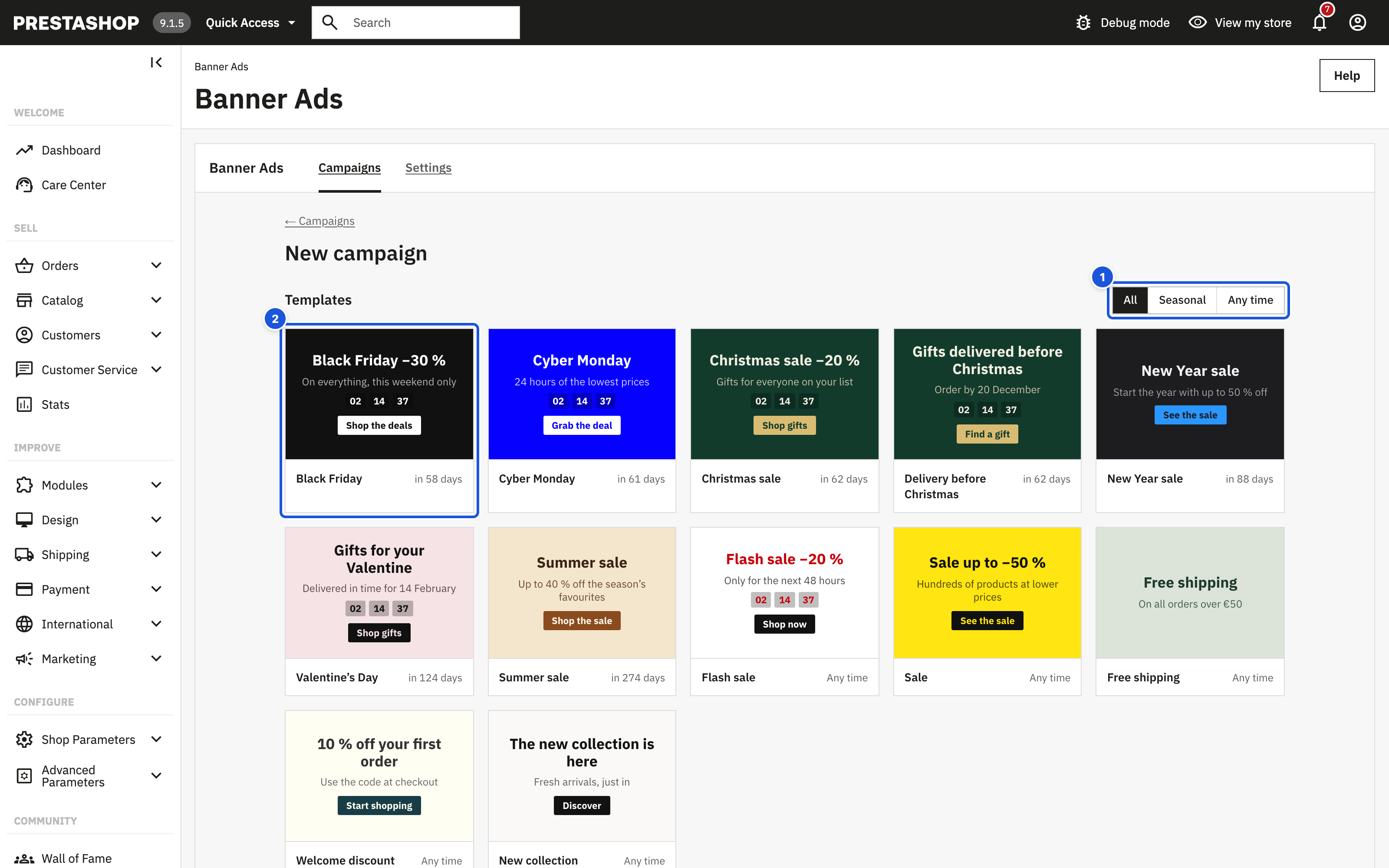
Templates are ready campaigns for the big sales of the year and for everyday promotions. Each one brings texts, a colour style, a discount code suggestion, dates and a countdown where it makes sense.
Start a campaign
Click New campaign in the campaign list. The New campaign page shows the templates first; below them, Or start from scratch offers two more ways:
| Option | What you get |
|---|---|
| A template | Ready texts, colours and dates for the big sales of the year and everyday promotions. |
| Design from scratch | Write a headline, pick colours. No image editor needed. All three placements use Designed, the right side mirrors the left. |
| Use your own images | Upload banners made by your designer. All three placements use Own image. |
Nothing is saved until you click Save draft or publish in the editor.
The templates
Filter the list with All, Seasonal or Any time. Seasonal templates are sorted by how soon they start and show Running now or in 12 days.
Seasonal
| Template | Dates | Repeats every year | Style | Countdown | Code |
|---|---|---|---|---|---|
| Black Friday | Black Friday 00:00 – Cyber Monday 23:59 | No | Noir | Yes | BLACK30 |
| Cyber Monday | Cyber Monday 00:00 – 23:59 | No | Ultramarine | Yes | CYBER25 |
| Christmas sale | 1 Dec 00:00 – 24 Dec 12:00 | Yes | Evergreen | Yes | XMAS20 |
| Delivery before Christmas | 1 Dec 00:00 – 20 Dec 23:59 | Yes | Evergreen | Yes | – |
| New Year sale | 27 Dec 00:00 – 6 Jan 23:59 | Yes | Graphite | No | – |
| Valentine's Day | 1 Feb 00:00 – 14 Feb 12:00 | Yes | Blush | Yes | LOVE15 |
| Summer sale | 1 Jul 00:00 – 31 Jul 23:59 | Yes | Terracotta | No | – |
The dates filled in are those of the next (or the current) season. Templates with fixed dates are set to Repeat every year, so the campaign comes back by itself every year.
Black Friday and Cyber Monday fall on different dates every year, so these two campaigns run once. Next year, create the campaign again from the template: the gallery always shows the next Black Friday and Cyber Monday dates. Tip: duplicate is not the right tool here, because the copy keeps last year's dates.
Any time
| Template | Dates | Style | Countdown | Code |
|---|---|---|---|---|
| Flash sale | Starts now, ends 48 hours later | Redline | Yes | FLASH20 |
| Sale | No time limit | Signal | No | – |
| Free shipping | No time limit | Sage | No | – |
| Welcome discount | No time limit | Apothecary | No | WELCOME10 |
| New collection | No time limit | Atelier | No | – |
What a template sets up
- All three placements (Left side, Right side, Bar) switched on, as Designed banners, the right side Same as the left side, the bar at the Bottom.
- Where & who: all pages, everyone.
- Texts in English, Slovak, Czech, German, French, Spanish and Polish. Other languages of your store get the English texts; translate them in the editor.
- The campaign name in your back office language.
- No link: add one in Content > Link so shoppers can click through.
Everything can be changed afterwards.
Before you publish a template
- Create the discount code. The template only shows the code. Create a cart rule with the same code in Catalog > Discounts, or clear the Discount code field.
- Check the texts. Discounts such as "−30 %" and "orders over €50" are examples. Adjust them to your offer.
- Add a link to the sale category or product.
- Check the dates if your sale runs longer or shorter than the template.