6. Editor: Where & who
The Where & who tab decides on which pages the campaign appears, which shoppers see it (audience and conditions) and, in a multistore installation, in which shops it runs.
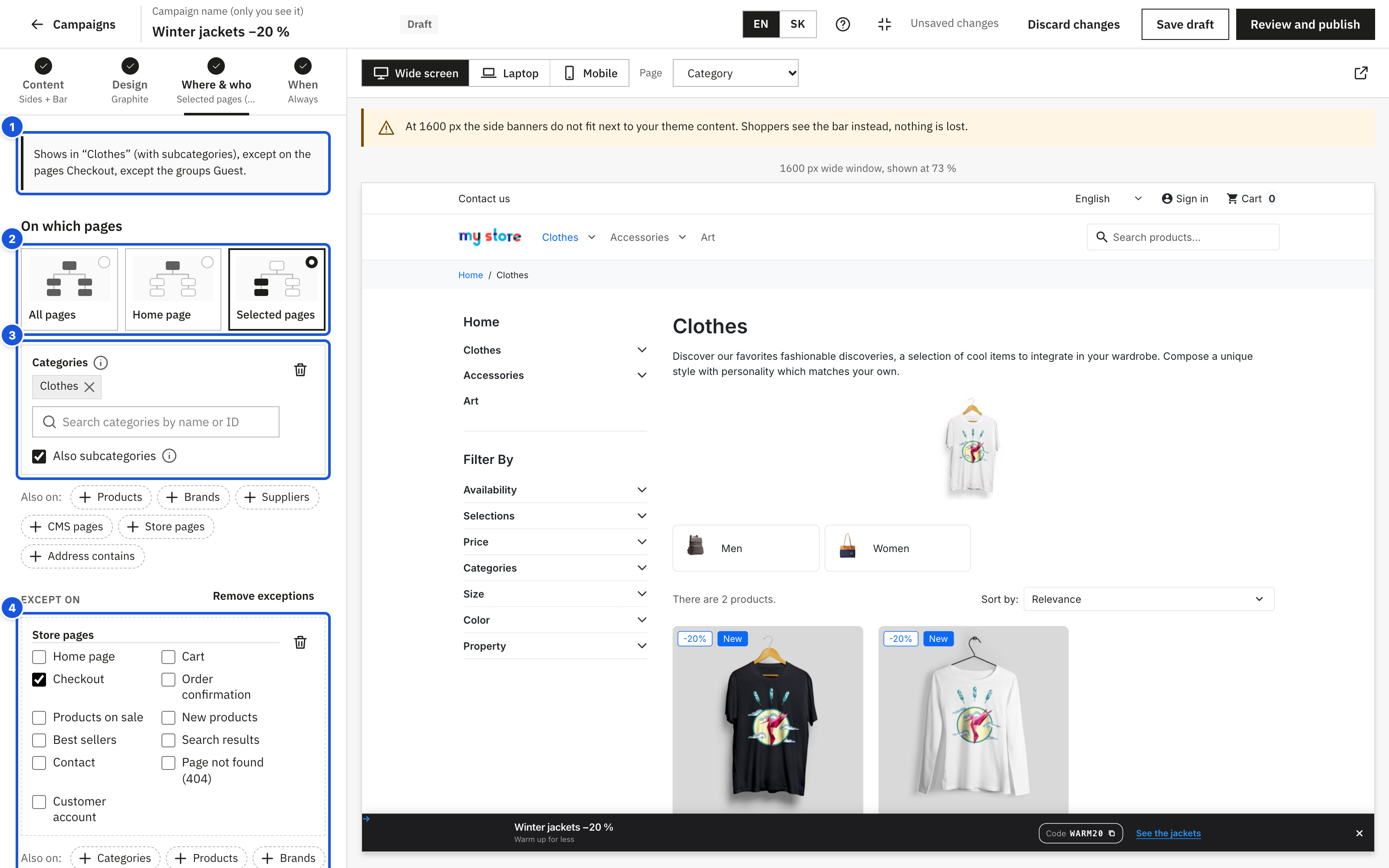
- The rule in one sentence
- All pages, Home page or Selected pages
- Categories; more kinds of pages under Also on
- Except on – exceptions always win
At the top of the tab one sentence says what the campaign does, for example: Shows in „Shoes“ (with subcategories) and on the pages Cart, except: on the pages Checkout, to visitors who are not logged in, on phones. Check it before you publish; the same sentence appears in Review before publishing.
On which pages
Choose one of the three pictures:
| Option | Where the campaign appears |
|---|---|
| All pages | Every page of the store. |
| Home page | Only the home page. |
| Selected pages | The pages you list below. |
Selected pages
With Selected pages the editor starts with Categories. Add more kinds of pages with the buttons under Also on – the campaign then appears on any of them (for example the home page, the New products page and the Summer category):
| Kind | Shows the campaign on |
|---|---|
| Categories | Category pages and the products in them. Also subcategories extends it to all subcategories and their products (on for new campaigns). |
| Products | The pages of these products. |
| Brands | Brand pages and all products of the brand. |
| Suppliers | Supplier pages and all products they supply. |
| CMS pages | For example delivery or contact pages. |
| Store pages | Home page, Cart, Checkout, Order confirmation, Products on sale, New products, Best sellers, Search results, Contact, Page not found (404), Customer account. |
| Address contains | Pages whose address contains the text, e.g. /summer-sale or ?utm_source=newsletter. Type it and press Enter. |
In the search fields type a name or ID (for products also the reference) and pick the item. Remove an item with the × on its chip, a whole kind with the bin button. A selected item that was deleted since shows as #12 (no longer exists); the review before publishing warns about it too.
Products show a category campaign when they belong to a selected category, not only when it is their default one.
Except on
Except on… under the pages adds exceptions: pages where the campaign never appears, even if the rules above include them. Exceptions always win. Typical uses:
- All pages except Checkout and Order confirmation – a sale bar that does not distract during payment.
- Categories: Clothes except Categories: Outlet – a new-collection banner that stays away from discounted goods.
- All pages except Brands: Brand X – a promotion the brand does not take part in.
Exceptions use the same kinds of pages. Remove exceptions deletes them all.
One-page checkout modules. If a module replaces the checkout (for example One Page Checkout), enter its page under Settings > Advanced > One-page checkout modules, so Checkout includes it.
Audience and conditions
Collapsed by default: most campaigns are for everyone. When closed, the header summarises what is set, for example to visitors who are not logged in, on phones.
| Condition | Options |
|---|---|
| Visitors | Everyone, Logged in or Not logged in. |
| Customer groups | All, Only these or All except the ticked groups. Every logged-in customer is in Customer, so for B2B offers pick your wholesale group; to hide a B2C coupon from B2B customers use All except the wholesale group. |
| Devices | All devices, Computers and tablets or Mobile (phones). |
| Countries | All, Only these or All except the listed countries. The country comes from the shopper's address, or from the IP address when geolocation is on (International > Localization / Preferences > Geolocation); otherwise it is the store's default country. |
| Languages, Currencies | Tick to limit the campaign; nothing ticked means all. Shown only when the store has more than one. |
| Cart value from / under | Products in the cart, tax included, in the default currency. |
Conditions combine: the campaign appears only when all of them match (and the page matches).
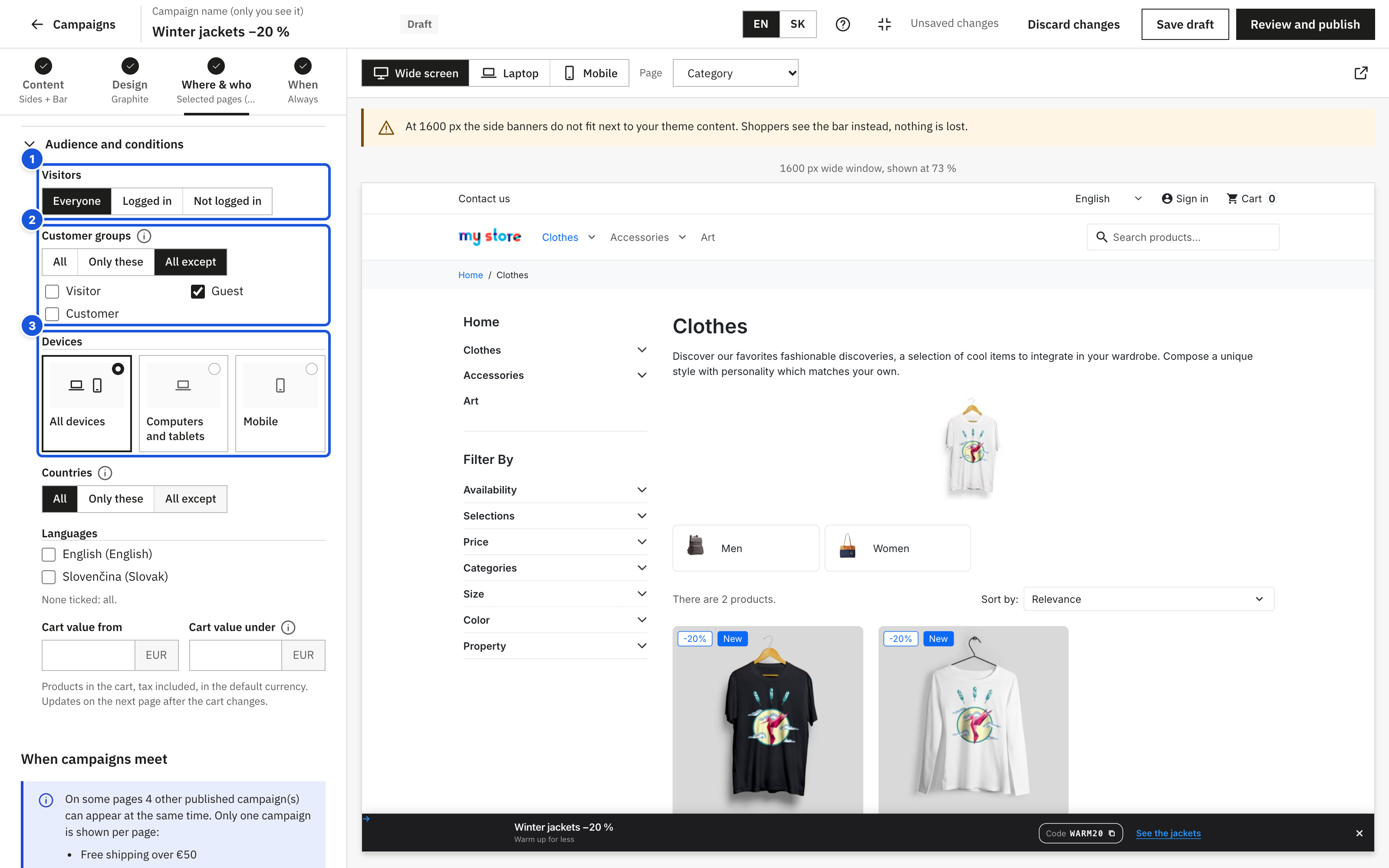
- Visitors
- Customer groups: only these or all except
- Devices
Free-shipping bar with the missing amount
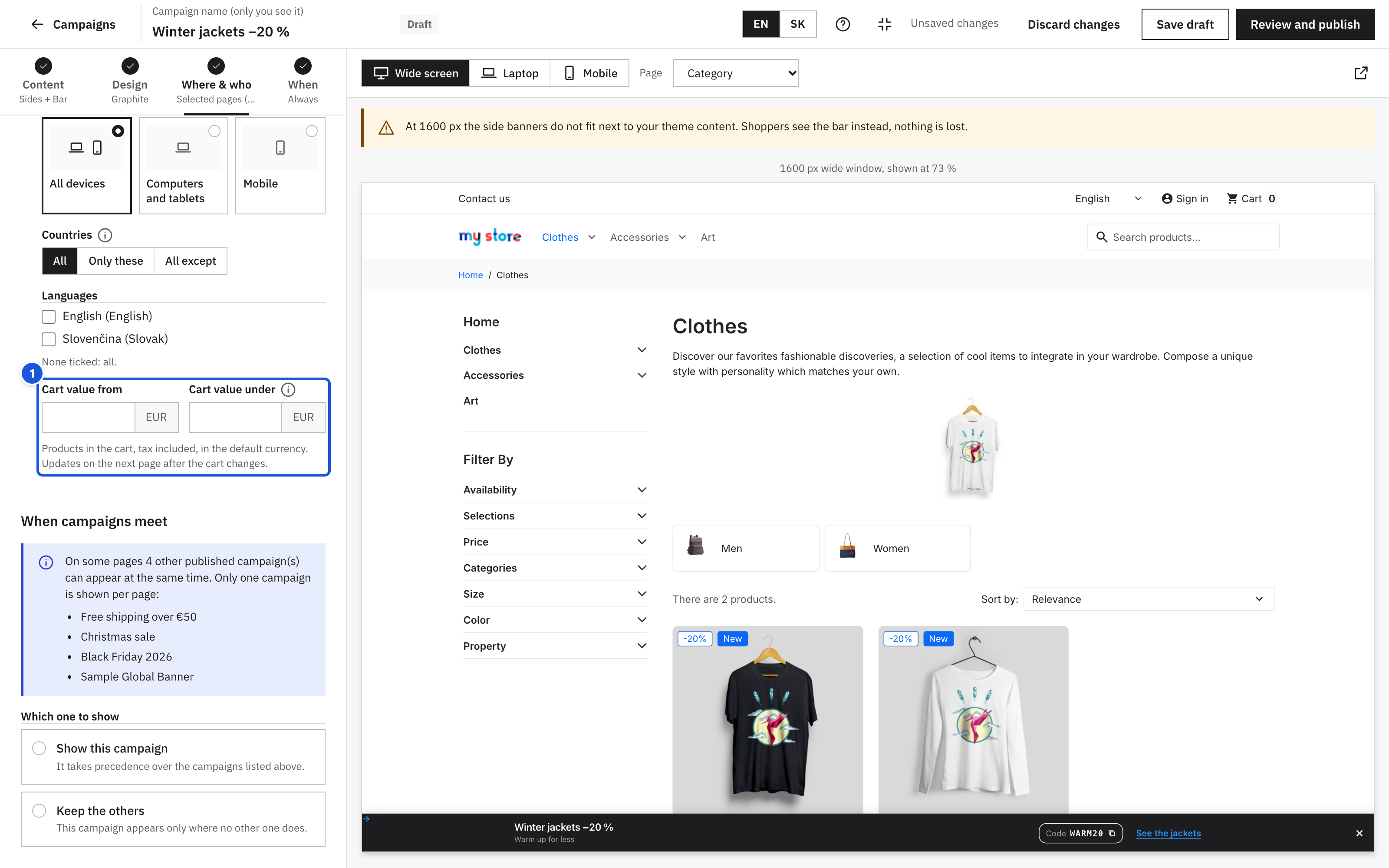
Set Cart value under to your free-shipping limit, e.g. 50, and write {remaining} in the headline, supporting text or button:
Add {remaining} for free shipping
Shoppers see Add 32,00 € for free shipping (in their currency). When they add to the cart, the amount updates without reloading; once the cart reaches the limit the bar disappears. For a "You have free shipping!" message make a second campaign with Cart value from 50; it appears from the next page.
Shops
This section appears only when multistore is enabled in your store (Shop Parameters > General > Enable Multistore).
The campaign runs only in the ticked shops. Tick every shop that should show the campaign. At least one shop must be ticked; otherwise the editor shows "Tick at least one shop, otherwise the campaign appears nowhere." and the campaign cannot be published.
- A new campaign starts with the shops of your current back-office shop context: the selected shop, all shops of the selected group, or all shops.
- Texts, images and links you edit are saved for all ticked shops.
- When you create a new shop in Advanced Parameters > Multistore and import data from an existing shop with Banner Ads ticked in the list of modules, the new shop gets the campaigns of that shop with their texts. Otherwise open each campaign and tick the new shop.
When campaigns meet
Only one campaign is shown per page. If other published campaigns can appear on some of the same pages at the same time (in multistore: in at least one shared shop), the tab shows the When campaigns meet section with the list of those campaigns:
- Show this campaign – it takes precedence over the listed campaigns.
- Keep the others – this campaign appears only where no other one does.
How the store picks a campaign
On every page the store looks at all campaigns that are published, switched on, inside their dates, run in the current shop, target this page and whose audience and conditions match the shopper. Then it picks:
- The campaign you chose to show first under When campaigns meet.
- Otherwise, the more specific campaign: product > category, CMS page, brand, supplier, store page or address > home page > all pages. A campaign for one product therefore beats a campaign for all pages.
- Otherwise, the newest campaign.
If the winning campaign has nothing to show in the shopper's language, the next one is used.
Example: a "Free shipping" campaign on All pages and a "Winter jackets −20 %" campaign on the Jackets category. On jacket pages shoppers see the winter campaign (more specific); everywhere else they see free shipping.