7. Editor: When
The When tab sets the dates of the campaign, the countdown, and what shoppers can do with the banner (close it, and when it comes back).
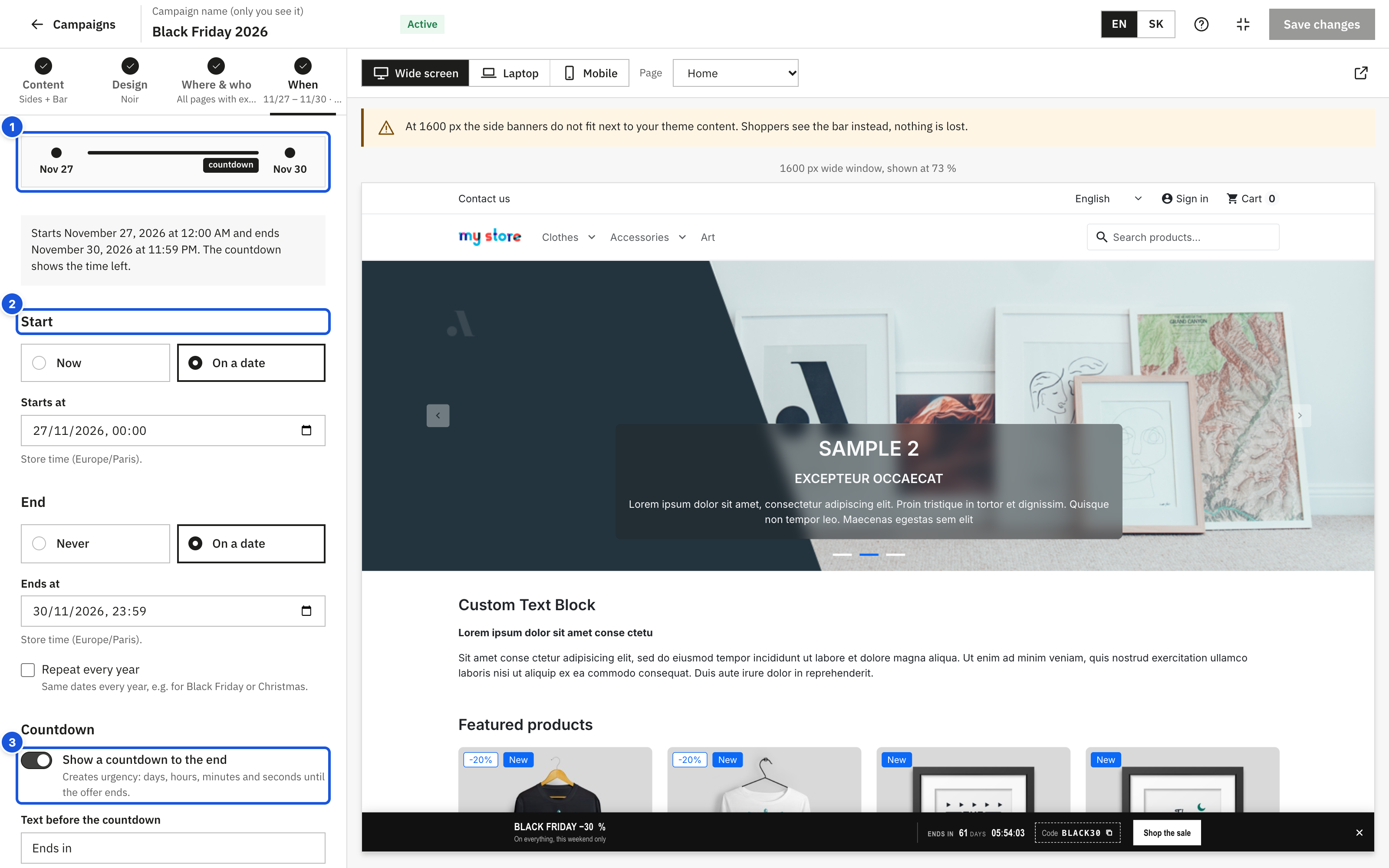
- Time line of the campaign
- Start and End, in store time
- Show a countdown to the end
At the top a time line shows the start, the end (a dashed line when there is none), the countdown and the yearly repetition, and a one-sentence summary tells you what will happen, for example "Starts 28 November 2026, 00:00 and ends 1 December 2026, 23:59. The countdown shows the time left. Repeats every year."
Start and end
| Setting | Options |
|---|---|
| Start | Now (as soon as the campaign is published) or On a date – then set Starts at. |
| End | Never or On a date – then set Ends at. |
All times are in your store's time zone, shown under the field (Store time (Europe/Bratislava)), also when your computer is set to another time zone. Choosing On a date fills in the next full hour for the start and the end of the day a week later for the end. The end must be after the start. A start date with End: Never is fine: the campaign then runs from that date without an end.
When a published campaign reaches its end, it disappears from the store automatically and the campaign list shows it as Ended. Before its start it is shown as Scheduled. A yearly campaign outside its dates is shown as Scheduled until its period comes round again.
Repeat every year
Repeat every year runs the campaign on the same dates every year, for example for Christmas or a summer sale. It is available when both a start and an end date are set. The year of the dates is then ignored.
A yearly period may cross the new year, for example 27 December to 6 January.
Use it for holidays with a fixed date. Black Friday and Cyber Monday move every year, so they are not repeated: create the campaign again from the template next year (see Templates).
Countdown
Show a countdown to the end adds days, hours, minutes and seconds until the offer ends. It creates urgency and needs an end date (Set an end date first.).
| Setting | Where | Notes |
|---|---|---|
| Text before the countdown | visible | For example "Offer ends in:". Per language: switch the language at the top of the editor to translate it. |
| Style | Countdown options | Tiles (each number on its own tile) or Plain text, shown as samples. |
| Text after the end | Countdown options | Shown only if a shopper keeps the page open past the end, for example "Offer expired". Per language. |
For yearly campaigns the countdown runs to the end of the current year's period. On banners with your own image, the countdown appears on a strip in the campaign's Background and Headline colours (set in the Design tab): over the bottom of a side image, and under the image in the bar.
Behaviour
The Behaviour section is collapsed; its heading lists what differs from the defaults (closable, shown again the next day, never hidden automatically).
Shoppers can close the banner
Adds a small × in the corner. Recommended: a banner that cannot be closed annoys. The close button has a label for screen readers ("Close promotion").
- Closing the bar, or both side banners, hides the whole campaign.
- Closing only one side banner hides just that banner on the current page.
After closing, show it again decides when a shopper who closed the campaign sees it again:
| Option | The campaign comes back |
|---|---|
| On the next page | On the next page the shopper opens. Nothing is stored; the banner is hidden only on the current page. |
| After 1 hour | One hour after closing. |
| The next day | 24 hours after closing. |
| After a week | 7 days after closing. |
| After 30 days | 30 days after closing. |
For the other options the choice is remembered in the shopper's browser for that many hours. When you change what shoppers see (texts, images, links, colours or the countdown), everybody sees the campaign again, even those who closed it before. Pausing, rescheduling or changing the pages it runs on keeps it closed.
Hide the bar automatically
Hide the bar automatically hides the bar after 10, 30 or 60 seconds (Never keeps it). On phones the bar covers part of the page. Side banners stay: they never cover your content. The bar comes back on the next page.