12. Media library
The media library keeps every image you uploaded for your campaigns. You reuse images across campaigns and languages without uploading them again.
Open the library
In the Content tab of the editor, on a placement that uses Own image:
- click Choose from the library (empty field), or
- click Replace (field with an image).
The window Images for: Left side (or Right side, Bar) opens. The placement matters: the library rates every image for that placement.
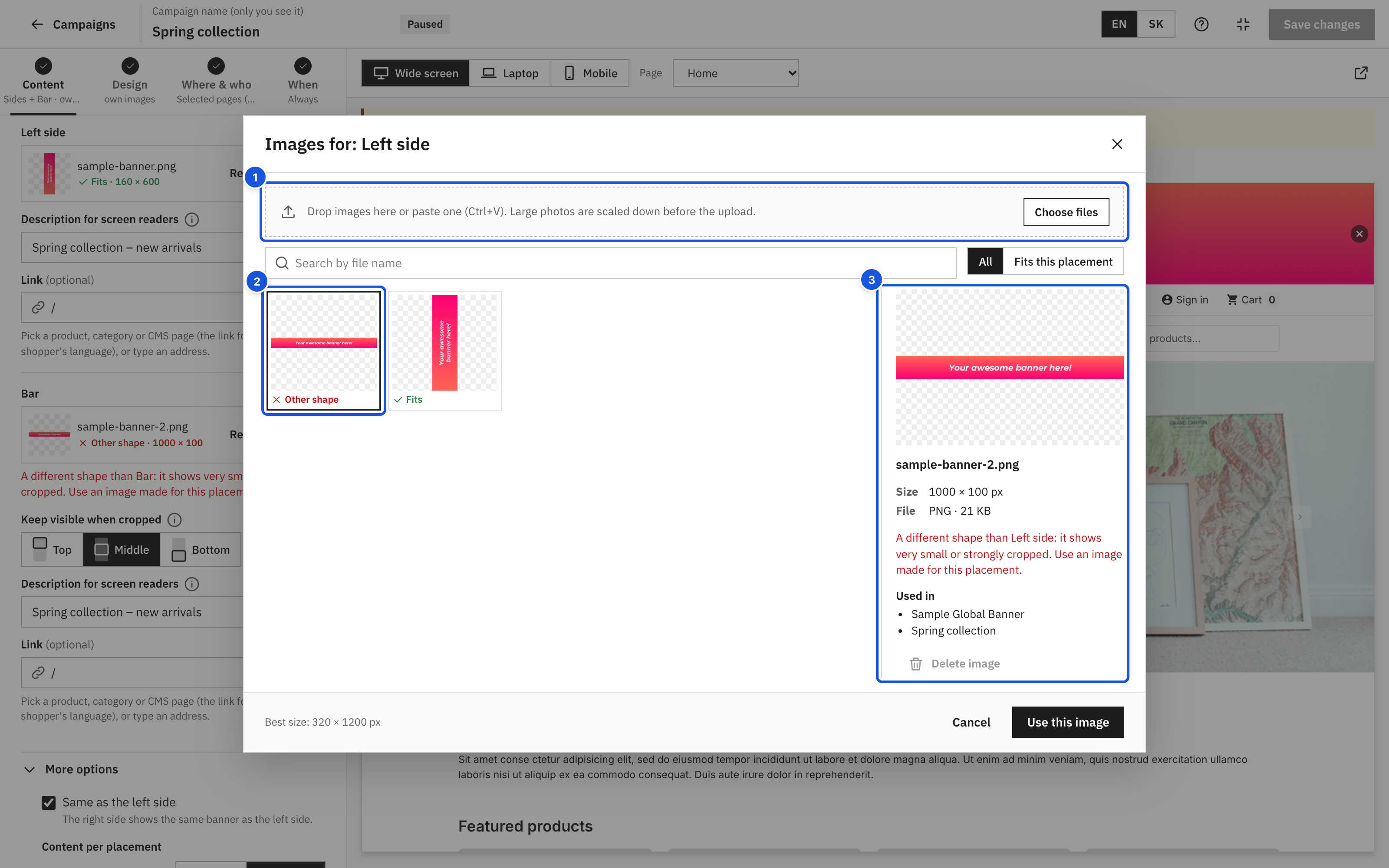
- Drop, choose or paste images
- Every image is rated for the placement
- Size, file and where the image is used
Upload images
- Drop one or more files on the upload area,
- click Choose files, or
- paste an image from the clipboard (Ctrl+V, Cmd+V on a Mac).
Accepted: JPG, PNG, WebP, GIF or SVG up to 5 MB each, or less if your server's PHP upload limit is lower; the editor shows the actual limit. Large photos are scaled down in your browser before the upload (to twice the recommended width), which keeps them sharp and loads faster in your store. GIF animations and SVG files are uploaded unchanged. Uploading the same file twice does not create a copy.
The bottom of the window shows the best size for the placement, for example Best size: 320 × 1200 px.
Upload errors
| Message | What to do |
|---|---|
| The file is larger than 5 MB. Use a smaller image or ask your host to raise the upload limit. (The size shown is your actual limit.) | Compress the image or export it smaller. If the limit is below 5 MB, ask your host to raise the PHP upload limit (upload_max_filesize, post_max_size). |
| Use a JPG, PNG, WebP, GIF or SVG file. | Convert the file to one of these formats. |
| The file is not a valid image. | The file is damaged or has a wrong extension. Export it again. |
| The SVG contains scripts or external content and cannot be used. | For security, SVG files with scripts or links to external files are refused. Export a plain SVG or use PNG. |
| The image folder is not writable. Check the permissions of /img/sideadbanners. | Ask your host to make the folder writable for the web server. |
| You do not have permission to upload images. | Your employee profile lacks the permission; ask the shop administrator. |
Find an image
- Search by file name filters the images by name.
- Show: Fits this placement hides images with a different shape.
Each image has a label: Fits, Cropped or Other shape (see Content > Images).
Image details
Click an image to see its details on the right:
- Size in pixels (or Vector (any size) for SVG), file type and file size.
- How it fits the placement, for example "The shape fits Left side."
- Used in: the campaigns that use it, or Not used in any campaign.
Click Use this image (or double-click the image) to put it into the campaign.
Delete an image
Select the image and click Delete image, then confirm with Delete. The image is deleted for good.
An image that a campaign uses cannot be deleted ("Used in a campaign. Remove it there first."). Remove it from the campaign or delete the campaign first. Deleting a campaign never deletes its images.
Where the images are stored
Images are stored in the folder /img/sideadbanners/ of your store, outside the module folder, so they survive module updates. They are deleted only when you uninstall the module.