10. Campaign list and statistics
The Campaigns page is the start page of the module. Like every page of the module (New campaign, Settings and the campaign editor), it opens inside the PrestaShop back office with the usual header and menu. It lists all your campaigns with their status and results.
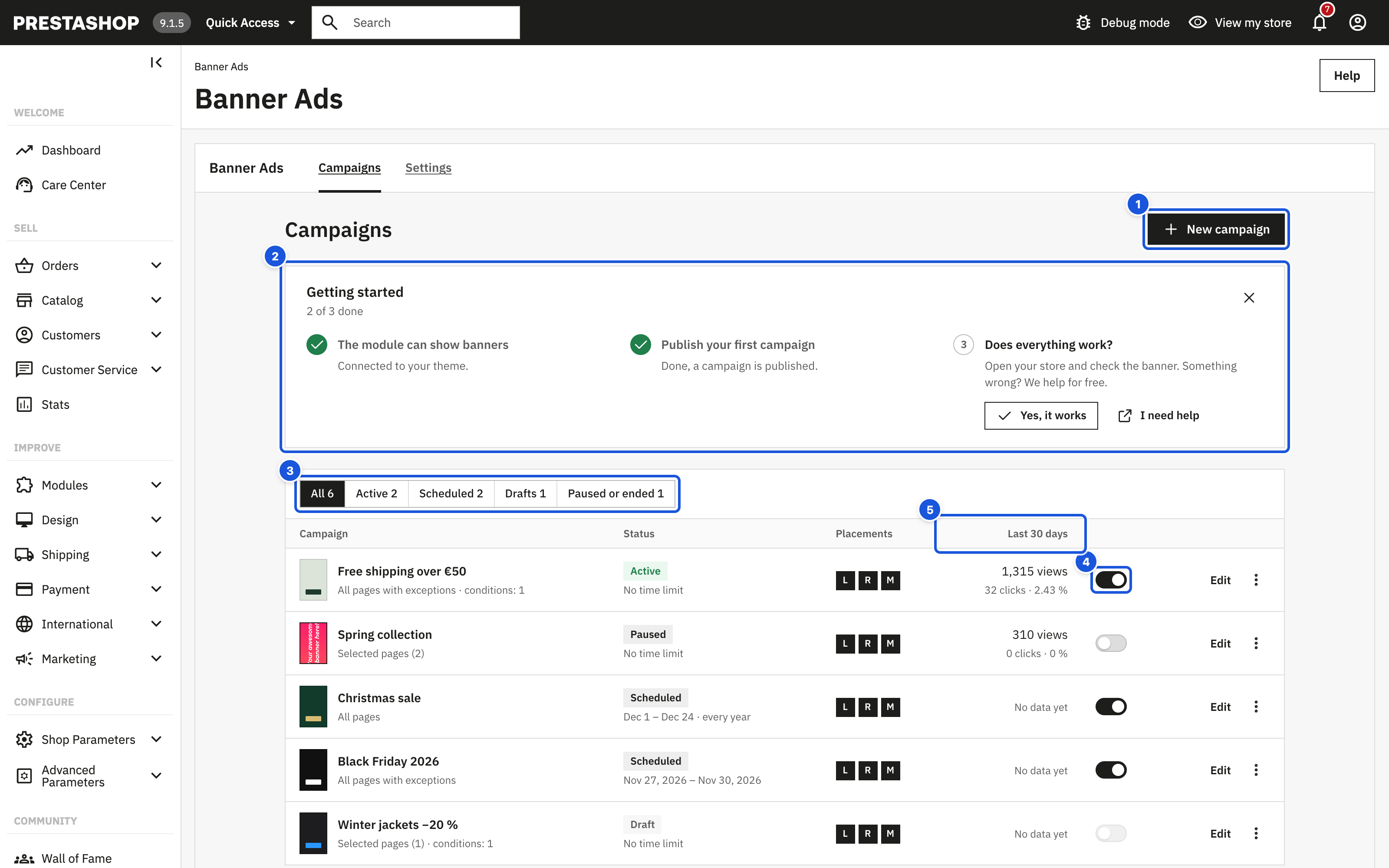
- New campaign
- Getting started
- Filters
- On / off switch
- Last 30 days
After installation the list contains the draft Sample Global Banner; drafts never appear in the store. If you delete all campaigns, you see No campaigns yet with a New campaign button.
Multistore
In a multistore installation the list shows only the campaigns of the shop (or shops) selected in the PrestaShop shop selector at the top of the back office. Choose All shops there to see every campaign.
Filters
Above the list, Show filters the campaigns. Each filter shows how many campaigns it contains; filters without campaigns are hidden.
| Filter | Shows |
|---|---|
| All | Every campaign |
| Active | Published, switched on and inside their dates |
| Scheduled | Published and switched on, but the start date is still ahead (yearly campaigns: outside this year's period) |
| Drafts | Not published yet |
| Paused or ended | Switched off, or past their end date |
Columns
| Column | What it shows |
|---|---|
| Campaign | A small colour sample or image, the name (click it to edit) and a short summary of where it runs, for example "All pages", "Selected pages (3) with exceptions" or "All pages · conditions: 2". In multistore, also the shops it runs in: All shops or the shop names. |
| Status | Draft, Active, Scheduled, Paused or Ended, with the dates: "No time limit", "From 1 Dec 2026", "Until 24 Dec 2026", or a date range. Yearly campaigns add "every year". |
| Placements | L (left side), R (right side) and M (bar on mobile); highlighted letters are switched on. |
| Last 30 days | Views, clicks and click rate, for example "1,240 views" and "36 clicks · 2.9 %". New campaigns show No data yet. With All shops selected in the shop selector, the numbers are the sum of all shops. |
| On / off switch | Shows or hides the campaign in the store immediately, without opening it. |
| Actions | Edit and the ⋯ menu with Duplicate and Delete. |
A view is counted when at least half of a banner is visible on the shopper's screen, once per page and placement. A click is counted when the shopper clicks a linked image or button (copying the discount code is not counted as a click). Views and clicks in the editor preview are not counted.
Switch a campaign on or off
Use the switch in the row. Paused campaigns keep all their settings and dates; switch them on again whenever you like. Drafts cannot be switched on here ("Publish the draft first"); open them and use Review and publish.
Duplicate a campaign
Choose Duplicate in the ⋯ menu. A copy named "… (copy)" is created as a draft, with all texts, images, pages and dates. Statistics are not copied. This is the fastest way to prepare a similar campaign, for example the same banner for another category.
Delete a campaign
Choose Delete in the ⋯ menu and confirm with Delete. The campaign and its statistics are deleted. Uploaded images stay in the media library.
Getting started box
Until you hide it, the top of the page shows the Getting started checklist (see Installation). It also warns you when the module is not attached to your theme or is disabled.